
ls lists the files in a folder. ls -l lists them with everything the system knows about each file, in a dense line of eight columns. It looks like noise until you know the layout, and then you read it at a glance.
Here is that layout, column by column.
The long listing
(-l selects the long format and -h makes the sizes human-readable, as explained in how to read any Linux command.)
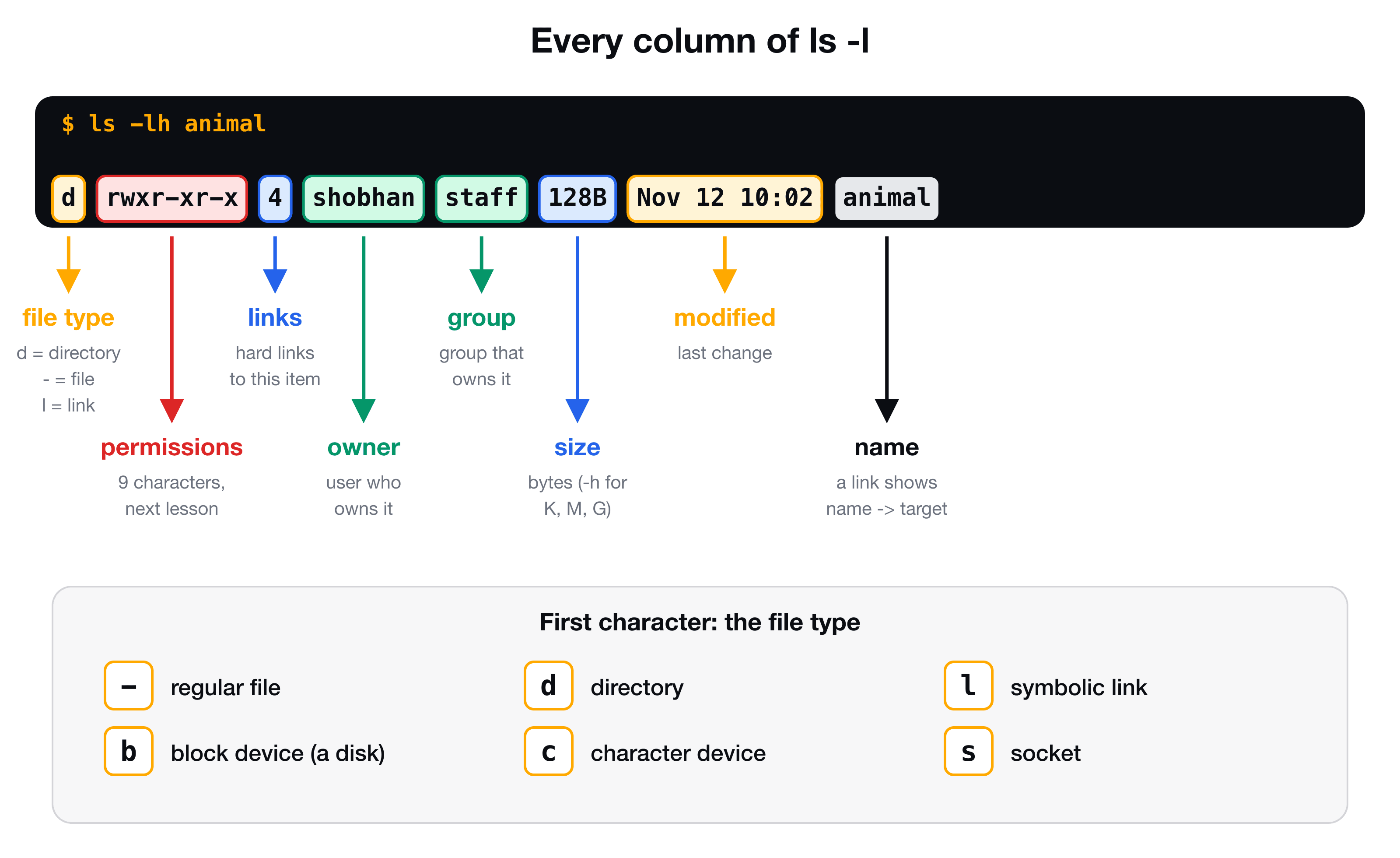
| # | Column | Example | Meaning |
|---|---|---|---|
| 1 | File type | d | What kind of item this is |
| 2 | Permissions | rwxr-xr-x | Who may read, write and run it |
| 3 | Links | 4 | Number of hard links |
| 4 | Owner | shobhan | The user who owns it |
| 5 | Group | staff | The group that owns it |
| 6 | Size | 128B | Size in bytes, or K, M, G with -h |
| 7 | Modified | Nov 12 10:02 | When the content last changed |
| 8 | Name | animal | The file or directory name |
The first two columns are written as one block of ten characters: the first is the type, and the other nine are the permissions.
Column 1: the file type
The very first character tells you what the item is:
| Character | Meaning |
|---|---|
- | A regular file |
d | A directory |
l | A symbolic link (see symlinks explained) |
b | A block device, such as a disk you plugged in |
c | A character device, such as a terminal |
s | A socket |
In everyday work you will see -, d and l.
Column 2: permissions
The next nine characters are three groups of three: what the owner, the group and everyone else may do. r is read, w is write, x is execute, and - means "not allowed". rwxr-xr-x means the owner can do everything, while the group and others can read and run but not change.
That column deserves its own explanation, with chmod and the numbers like 755. Read Linux file permissions explained.
Column 3: the number of links
For a normal file this is 1. For a directory it is higher, because every directory is linked from its parent, from itself (.) and from each subdirectory's ... That is why the animal folder above shows 4: it has two subdirectories. It is a technical number you can ignore at the start.
Columns 4 and 5: owner and group
The user who owns the item, and the group that owns it. These two names, together with the permission string, decide whether you may open the file. To see which user and groups you belong to, run id (users and groups explained).
Column 6: the size
Without -h the size is in bytes, which is hard to read for large files. With -h you get 128B, 2.3K, 14M. One thing to know: for a directory, this is not the size of its contents, only the size of the directory entry itself. To measure what a folder contains, use du -sh folder (see df and du).
Column 7: the modification time
The month, day and time of the last change to the content. For files that are older than about six months, ls shows the year instead of the time, such as Nov 12 2025. To sort by it, add -t (newest first), and -r reverses.
Column 8: the name, and where a link points
The last column is the name. If the item is a symbolic link, you also get an arrow and its target:
lrwxr-xr-x 1 shobhan staff 17B Nov 12 09:58 config -> directory1/config
Useful companions
ls -la        # include hidden files (names starting with a dot)
ls -lh        # human-readable sizes
ls -lt        # newest first
ls -lS        # largest first
ls -ld /etc   # details of the directory itself, not what is inside it
ls -ld is easy to forget, and very useful: ls -l /etc lists the contents of /etc, while ls -ld /etc shows the permissions and owner of the folder itself, which is what you need to know when you get "Permission denied" creating a file there.
Key takeaways
- ✓ls -l shows eight columns: type, permissions, links, owner, group, size, date, name.
- ✓The first character is the type: - file, d directory, l symlink.
- ✓The next nine characters are rwx for owner, group and others.
- ✓Add -h for readable sizes, -a for hidden files, -t to sort by time.
- ✓ls -ld shows the details of a directory itself instead of its contents.
Turn the output into understanding
Once you can read ls -l, permissions, ownership and "Permission denied" stop being mysterious. CLI Mastery goes through them step by step, then continues to processes, pipes, shell scripts and a real AWS server. 57 lessons, lifetime access. Start with the free path lesson.