
Every command you type in a terminal works on a path: cd into one, ls one, copy a file from one to another. If paths feel confusing, every other command feels confusing too. The good news is that the whole idea fits in one diagram.
Everything hangs off one root
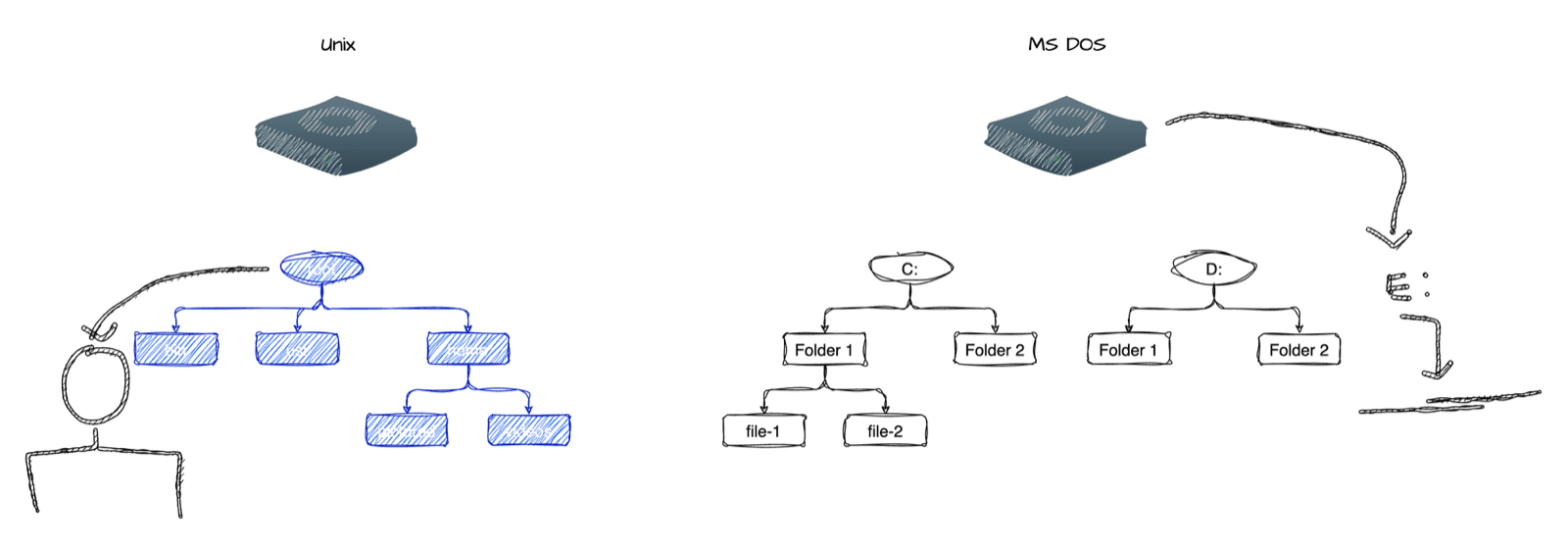
Early computers used a flat file system: every file sat in one single place. You can imagine how fast that became a mess. Around 1965 the Multics operating system introduced a hierarchical file system, directories inside directories, and Unix adopted it in 1971. Linux and macOS inherited it from Unix.
There is one important difference from Windows. Windows gives each drive or partition its own letter (C:, D:), each with its own tree. Unix has a single tree with a single root, written as /. Plug in a USB drive and it shows up as a directory somewhere under that same root.
A simplified view of the directories you will see on most systems:
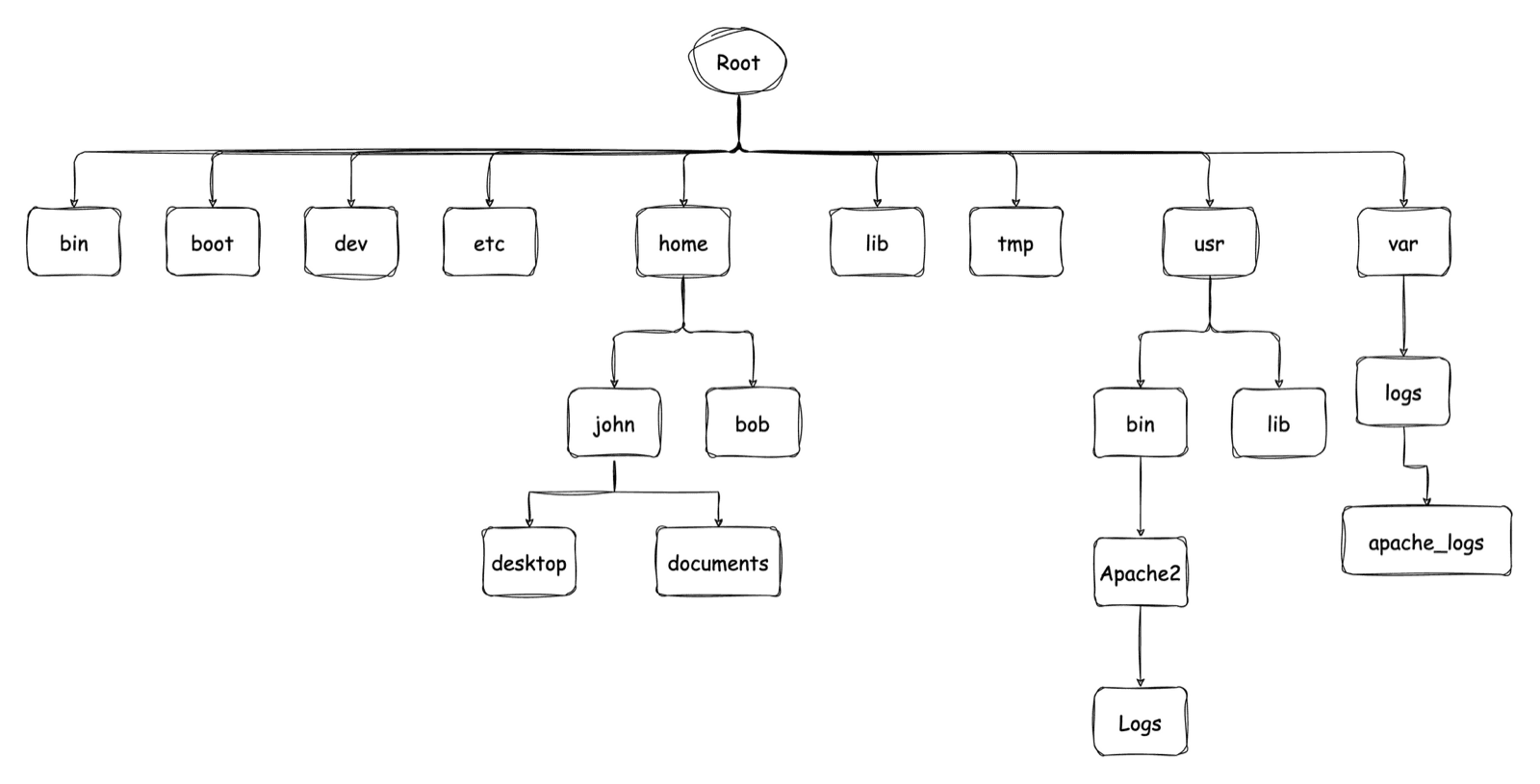
| Directory | What lives there |
|---|---|
/bin | Essential programs (binaries) like ls and cp |
/boot | Files needed to boot the system |
/dev | Devices, such as drives |
/etc | System-wide configuration |
/home | One directory per user (/Users on macOS) |
/lib | Shared libraries |
/tmp | Temporary files |
/usr | Software installed for users, with its own bin and lib |
/var | Data that changes, like logs |
Absolute path vs relative path
Take the videos directory inside John's home folder.
An absolute path describes the full route from the root. It always starts with /:
/home/john/videosEvery file and directory has exactly one absolute path. It works no matter where you currently are.
A relative path describes the route from where you are right now (your present working directory). If you are already inside /home/john, the file photo-3 is simply:
photos/photo-3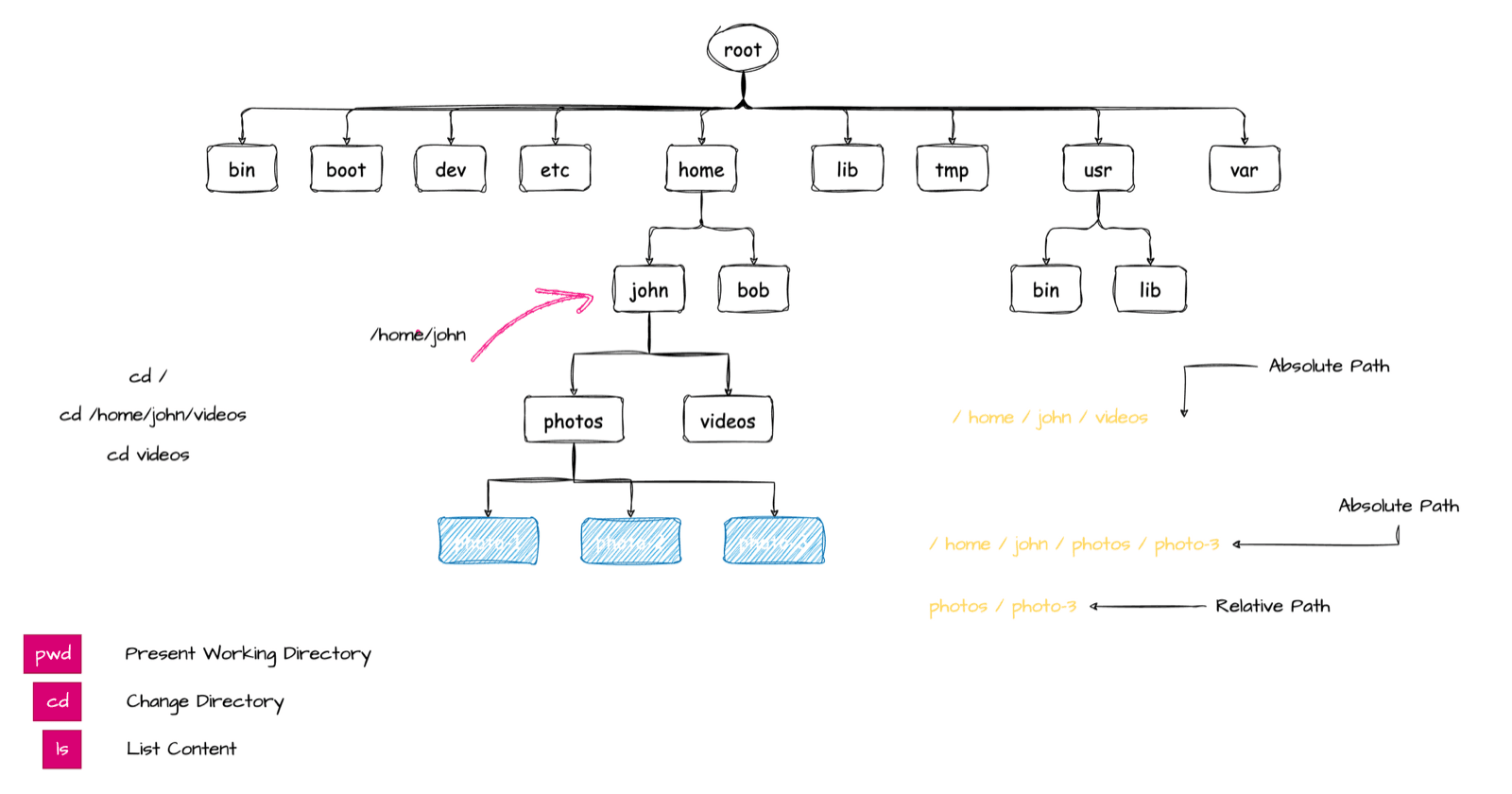
Watch it explained with this exact diagram in the free lesson:
Move around: pwd, cd and ls
Three commands do all the navigation:
pwd(present working directory) prints where you are, as an absolute path.cd(change directory) moves you, using an absolute or relative path.ls(list) shows what is inside a directory.
Both of these land in the same place. The first works from anywhere, the second only from inside Desktop:
cd /Users/shobhan/Desktop/dir-1   # absolute
cd dir-1 # relativePress Tab while typing a path and the shell autocompletes it. It saves typing and catches typos.
The five shortcuts worth memorising
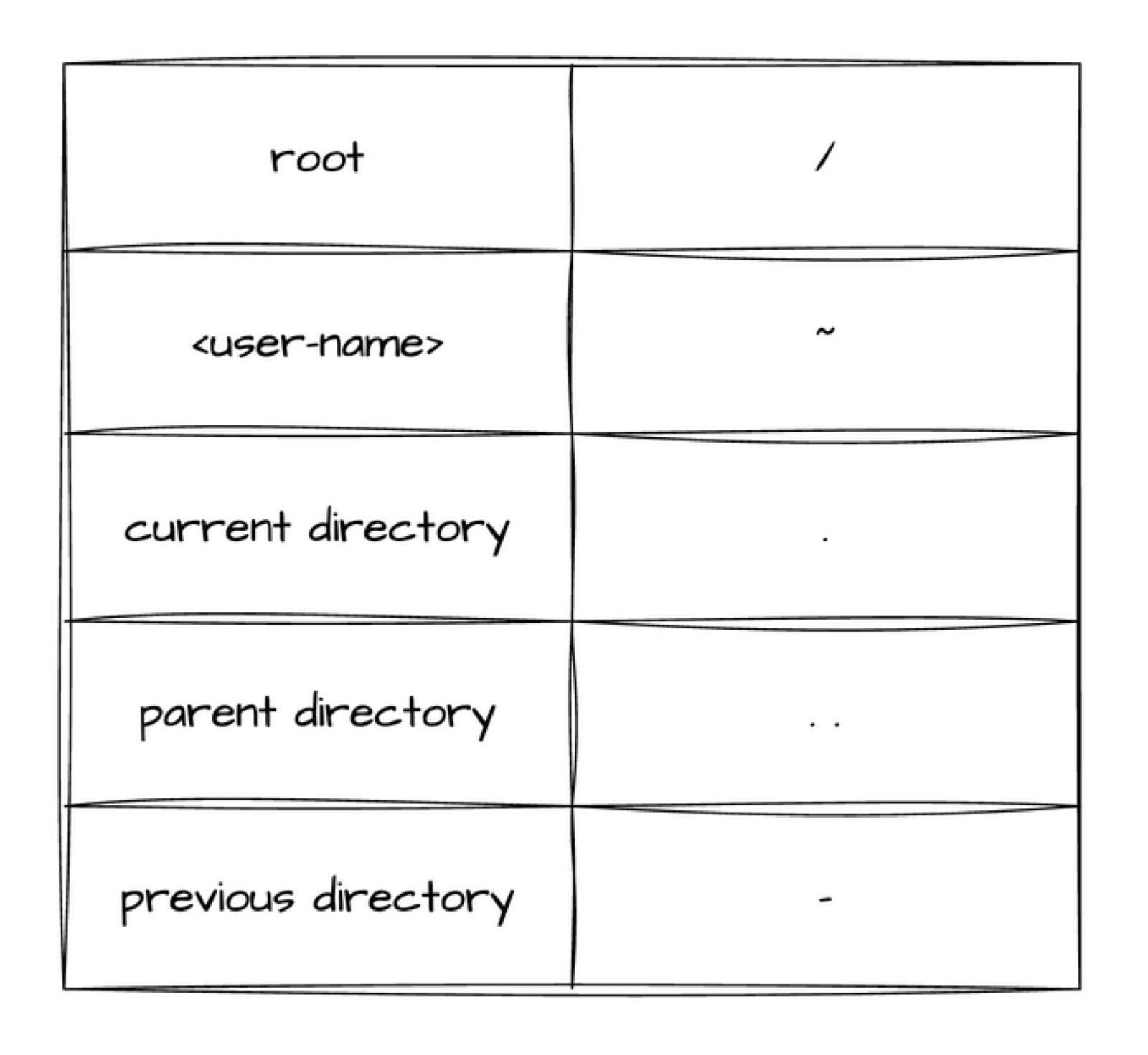
| Symbol | Means | Example |
|---|---|---|
/ | The root directory | cd / |
~ | Your home directory | cd ~ or cd ~/Desktop |
. | The current directory | ./deploy.sh, cd ./dir-2 |
.. | The parent directory | cd .. |
- | The previous directory you were in | cd - |
Run ls -la in any directory, even an empty one, and you will see . and .. listed. They are real entries that point to the directory itself and its parent.
Key takeaways
- ✓Unix has one filesystem tree with a single root, /.
- ✓Absolute paths start with / and work from anywhere.
- ✓Relative paths start from your present working directory (pwd).
- ✓~ is home, . is here, .. is the parent, - is where you just were.
Keep going
If this clicked for you, the rest of CLI Mastery is taught the same way: one concept drawn on a diagram, then done live in the terminal. 57 lessons, lifetime access, and you can watch three of them free before you decide.