
You log in to a server and your first questions are always the same: What machine is this? How long has it been running? Who else is on it? How much disk is left? A handful of tiny commands answer all of it.
Here they are, with the two that people mix up the most: df and du.
What is this machine?
| Command | Answers |
|---|---|
date | The current date, time and time zone |
uptime | How long the system has been running, and how busy it is |
uname | Which operating system and kernel |
who | Who is logged in right now, and from where |
users | The names of logged-in users, on one line |
(Your output will differ. These are examples.)
uptimeshows the time since the last restart. On a server, a very short uptime can mean it rebooted unexpectedly. The three numbers at the end, the load averages, are how busy the machine has been over the last 1, 5 and 15 minutes.unameprints the kernel name:Darwinon a Mac,Linuxon Linux. Add-afor everything, or pick one piece:uname -s(kernel),uname -r(release),uname -m(CPU type, such asarm64orx86_64).wholists every login session, including your own terminal windows.usersshows the same people, just names.
On Linux, the distribution (Ubuntu, Debian and so on) is not in uname. Check cat /etc/os-release.
How much disk space is left? df
df stands for disk free. It reports on every mounted file system. Without options the sizes are in blocks, which are hard to read, so always add -h (human-readable):
Each line is a disk or partition. Read it left to right: how big it is, how much is used, how much is available, and where it is attached in the file tree (Mounted on). On macOS the columns have slightly different names, but the idea is identical.
df works at the whole file system level, so it does not matter which folder you are in when you run it. You can also ask about one place: df -h /data shows only the disk that holds /data.
What is using the space? du
df tells you the disk is 67% full. It does not tell you why. That is du, disk usage, which measures folders and files:
Unlike df, du starts from the current directory (or the path you give it) and walks everything inside.
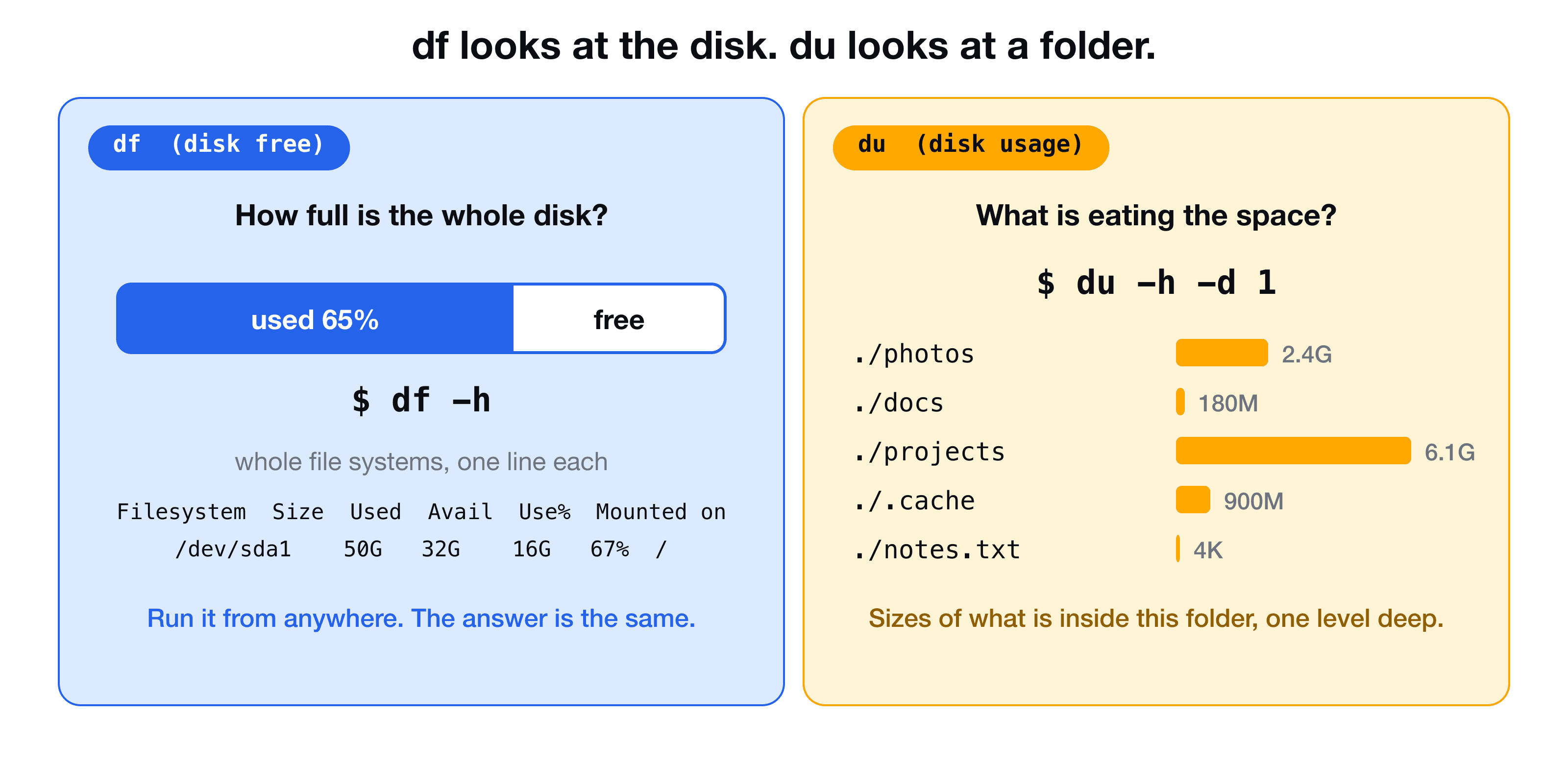
By default it prints every nested folder, which is far too long. Limit the depth with -d (or --max-depth= on GNU/Linux):
Only the folders one level down are listed, plus a total on the last line. Use -d 2 to look one level deeper.
Two more variants worth remembering:
du -sh *                  # one size per item here (s = summary)
du -sh /var/log # the total size of one folderA simple routine when a disk fills up
df -hto see which file system is full.cdinto its mount point and rundu -h -d 1to find the biggest folder.cdinto that folder and repeat. In a few steps you find the one directory (often logs, caches or old backups) that holds the space.
Cheat sheet
| Goal | Command |
|---|---|
| Current date and time | date |
| How long has it been up? | uptime |
| Kernel / OS name | uname or uname -a |
| CPU architecture | uname -m |
| Who is logged in | who |
| Disk space per file system | df -h |
| Size of this folder, one level | du -h -d 1 |
| Total size of a folder | du -sh <folder> |
Key takeaways
- ✓date, uptime, uname and who tell you the time, how long the machine has run, the OS and who is on it.
- ✓df -h shows how full each disk is. It does not matter where you run it.
- ✓du -h -d 1 shows how big each folder inside the current one is.
- ✓Use df to find which disk is full and du to find what is filling it.
- ✓Always add -h to read sizes as K, M and G.
Learn to look around any server
These commands are the first things you type on a new machine. CLI Mastery shows them in context: processes, permissions, pipes and a real AWS server you log in to over SSH. 57 lessons, lifetime access. Start with the free lesson on terminals and shells.