
A symbolic link (symlink, or soft link) is a file that does not hold any data. It holds a path to somewhere else. Open it, and the system quietly follows the path and opens the real thing.
If you come from Windows, think of it as a shortcut, except that it works at the file system level, so every program and every command treats it like the real file.
Why you would want one
Say a program keeps its logs in a deep folder, but you want to find them at a short, predictable place. Instead of moving the logs (and breaking the program), you leave them where they are and create a link in the place you want:
- You want
~/Desktop/configto open the file that really lives in~/Desktop/directory1/config. - A tool expects
/usr/local/bin/node, but the version you want is installed somewhere else. Version managers use symlinks for exactly this. - You keep your dotfiles in one Git folder, and link them where the system looks for them:
~/.zshrcpoints into your repo.
Create one: ln -s
The command is ln (link) with the -s flag (symbolic). The order is the one people forget:
ln -s <where the real file is> <name of the link>Read the ls -l line. The first letter is l (for link, where a normal file shows - and a directory d), and the name is followed by an arrow showing exactly where the link points. A link can point to a file or to a whole directory.
Use it like the real thing
Both commands print the same text, because there is only one file. Edit through the link and you change the original. You can even rename the link with mv, and it keeps working, because renaming a link changes the link, not the file it points to.
A link is a pointer, not a copy
This is the core idea, and the thing that confuses beginners. Delete the original and the link stays, but it now points at nothing:
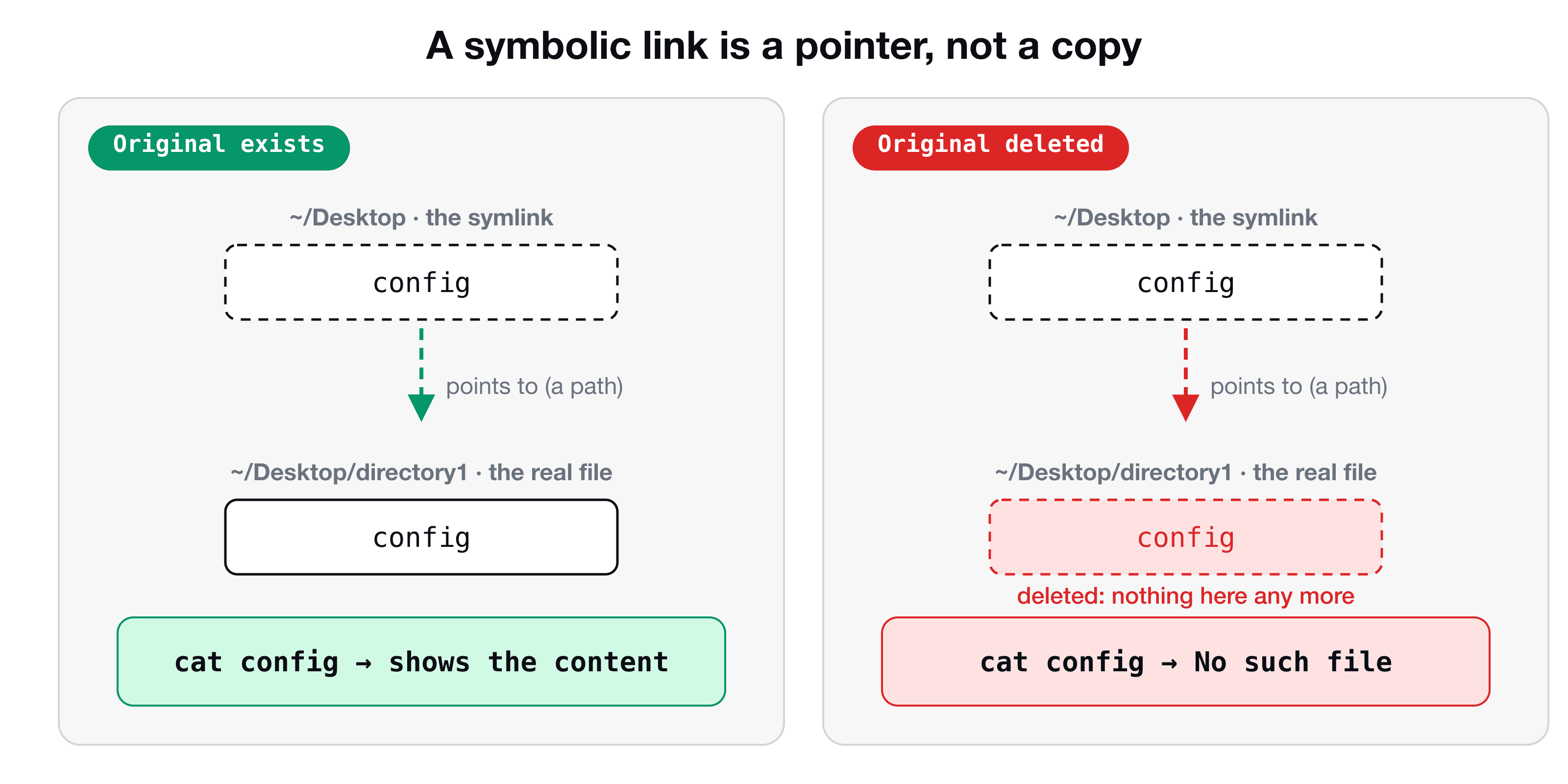
The link is still listed, still with its arrow, but it is dangling. Nothing was copied, so nothing survived. The reverse is also safe: rm config removes only the link and leaves the original untouched.
Soft links vs hard links
ln without -s makes a hard link: a second name for the same data, which keeps working even if the first name is deleted. Hard links cannot point to directories or across disks, and they are rarely what you need. In day-to-day work, 99% of the time you want ln -s.
| Symbolic (soft) link | Hard link | |
|---|---|---|
| Command | ln -s target link | ln target link |
| Stores | A path | Another name for the same data |
| Works on directories | Yes | No |
| If the original is deleted | Link breaks | Data is still there |
The mistake everyone makes: relative paths
A relative path in a symlink is read from the folder where the link lives, not from where you ran the command.
The link sits in ~/Desktop, so it looks for ~/Desktop/directory1/config, which does not exist. The fix is to use the full path as the first argument:
ln -s ~/directory1/config ~/Desktop/configIf you are unsure how the two path styles differ, read absolute vs relative paths in Linux, and this will never bite you again.
Key takeaways
- ✓A symlink stores a path, not data: ln -s <real file> <link name>.
- ✓ls -l shows a link with a leading l and an arrow to its target.
- ✓Edits through the link change the original, because there is only one file.
- ✓If the original is deleted the link dangles. rm on the link never touches the original.
- ✓Use the full path for the target, or the link breaks when it lives in another folder.
Learn the whole terminal, not just one command
Links are a small piece of the Unix file system. CLI Mastery teaches the rest in order: paths, files, permissions, processes, pipes, shell scripts, and finally connecting to a real server with SSH. 57 lessons, lifetime access. Try the free lesson on absolute and relative paths.