
You can do 90% of your daily file work in the terminal with seven commands. The commands themselves are easy. What trips people up is the handful of flags that decide whether a command quietly overwrites your work, refuses to touch a folder, or deletes something for good.
This guide walks through each command with the flags that matter. The examples assume you are in a scratch folder, so try them as you read.
Create files: touch (or an editor)
touch creates an empty file. Pass the name as an argument:
The second file has no extension, and that is fine. In Unix an extension is only a hint for you and for graphical apps. It does not change how the file is stored. (If the file already exists, touch just updates its modified time.)
The other way to create a file is to open an editor with the name: nano notes.txt, type, then Ctrl + X to save.
Read files: cat and less
cat prints a file. Give it several files and it prints them one after another, which is where the name comes from: it is short for concatenate.
cat is perfect for short files. For a long file it dumps everything and you scroll back with your mouse. For anything big, use a pager:
| Command | What you get |
|---|---|
more big.txt | Page by page, forward only |
less big.txt | Page by page, forward and back, plus search |
There is an old joke behind it: "less is more". less came later and does more, so use less.
Key inside less | Action |
|---|---|
Space or f | Next page |
b | Previous page |
/word | Search forward (n jumps to the next hit) |
?word | Search backward |
q | Quit |
Create directories: mkdir
You can pass several names at once. The second command fails because animal does not exist yet. The -p flag (parents) creates every missing folder along the way, and it does not complain if the folder is already there. You will use mkdir -p all the time in scripts.
Move and rename: mv
One command does both jobs. What changes is the destination.
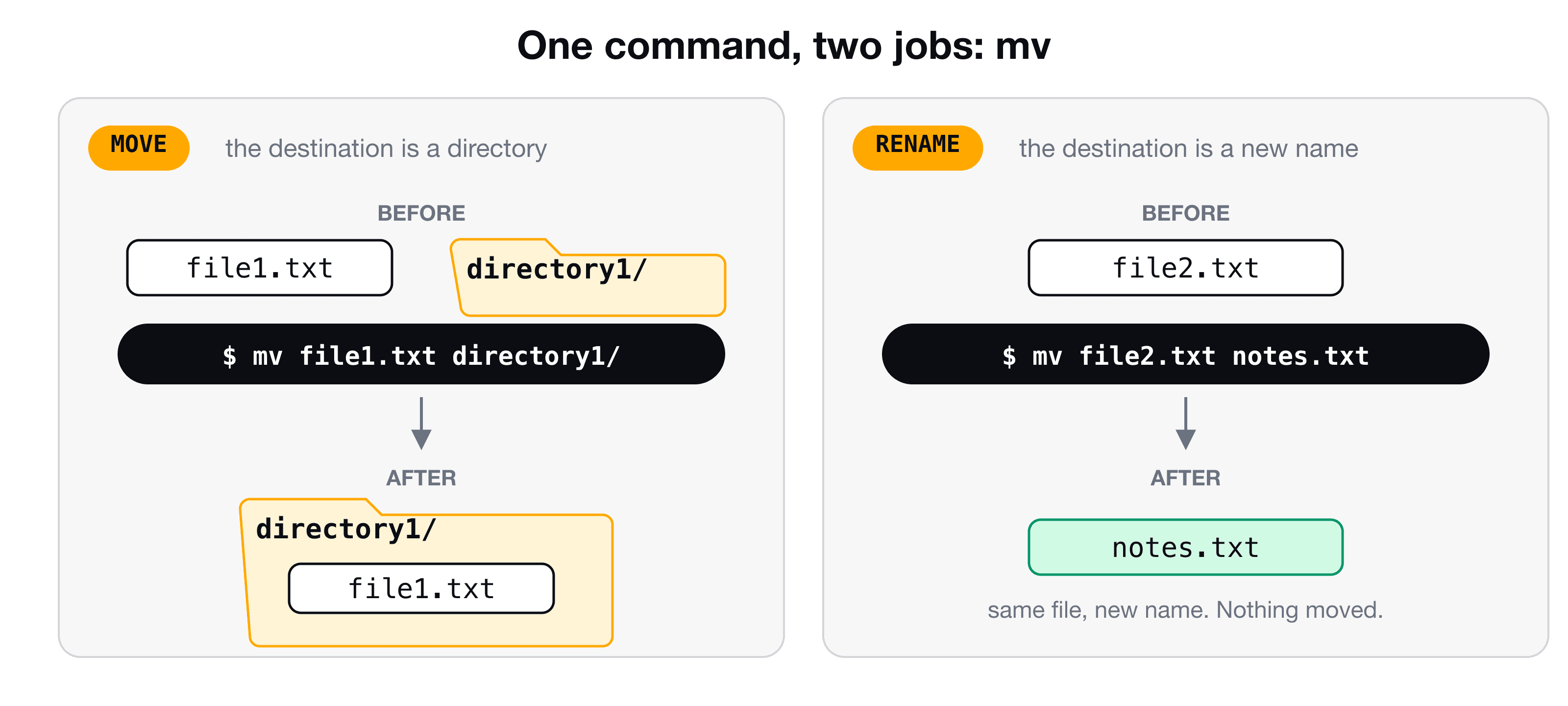
You can also point at a path without being inside the folder first: ls directory1 works from where you stand, and so does mv. Whether a path is written from / or from where you are is the idea behind absolute and relative paths.
The trap: mv overwrites silently
If directory1/file1.txt already exists and you move another file1.txt there, the old one is replaced without a question. Two flags protect you:
-i (interactive) asks before overwriting. -v (verbose) prints what it did. Combined as mv -iv, they make a good default.
Copy: cp
cp has the same shape as mv: source first, destination second.
Same warning as mv: without -i it overwrites. The difference shows up with directories. Unix refuses to copy one unless you say so, because copying a huge folder by accident is expensive:
-r means recursive: copy the folder and everything nested inside it. (mv does not need a flag for directories, because moving only changes where the folder is listed.)
Delete: rm has no undo
Deleting from Finder or File Explorer sends the file to the Trash. rm does not.
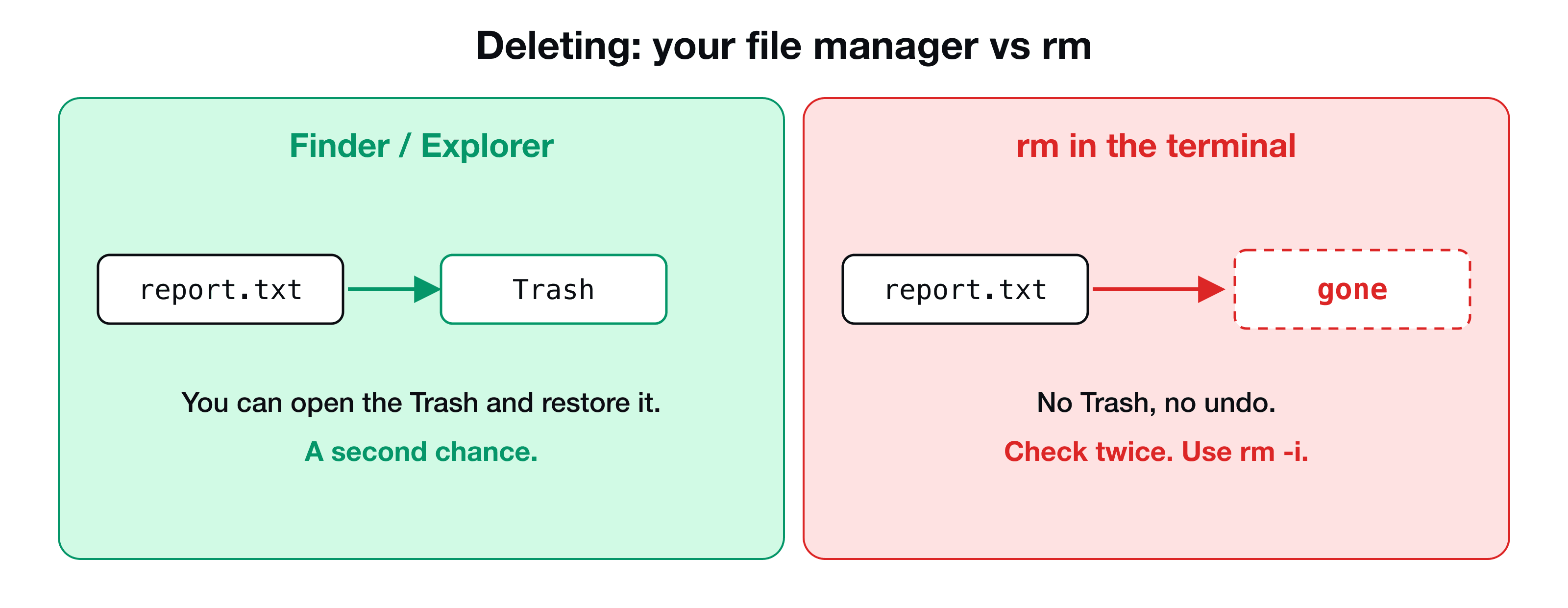
Like cp, rm needs -r for a directory. Then the safety flags:
| Flag | Meaning | When |
|---|---|---|
-i | Ask before each deletion | Make this your default |
-r | Delete a directory and everything inside | Needed for folders |
-f | Force: never ask, hide errors about missing or read-only files | Only when you are certain |
A good habit is to make rm -i the default with an alias. You set that once in your shell config file, which is covered in Customize your shell: .bashrc vs .zshrc, aliases and the PS1 prompt.
Cheat sheet
| Task | Command |
|---|---|
| Create an empty file | touch file |
| Show a short file | cat file |
| Page through a long file | less file |
| Create a folder (and parents) | mkdir -p a/b/c |
| Move a file or folder | mv source destination |
| Rename | mv old new |
| Copy a file | cp source destination |
| Copy a folder | cp -r source destination |
| Delete a file, asking first | rm -i file |
| Delete a folder | rm -r folder |
Key takeaways
- ✓touch creates files, cat prints them, less pages through long ones.
- ✓mkdir -p creates a whole nested path in one go.
- ✓mv moves or renames depending on the destination, and it overwrites silently unless you add -i.
- ✓cp needs -r for directories, and rm needs -r too.
- ✓rm skips the Trash. Use rm -i, and slow down on rm -rf.
Practice with someone who shows you the mistakes
Reading about mv is easy. Watching it overwrite a file you were not expecting to lose, and then learning how to prevent it, is what makes the habit stick. CLI Mastery covers all of this, and then pipes, permissions, scripting and a real server on AWS. 57 lessons, lifetime access. You can start with the free path lesson.