
"Permission denied" is one of the first walls everyone hits in the terminal. The fix is rarely hard. What makes it feel hard is that the output of ls -l looks like noise until someone explains it once, column by column.
So let's do exactly that. By the end you will be able to read any permission string, and fix it with chmod and chown.
Why Unix has users and groups at all
Back when computers were expensive, a university might have one computer with many terminals wired to it: one for the physics department, one for maths, one for administration. Inside physics alone there would be teachers and students, each needing their own files, and some shared ones.
One machine, many people. Unix solved this with users (every person has an account) and groups (a set of users who share access). That multi-user design is still how every Linux server, Mac and cloud VM works today.
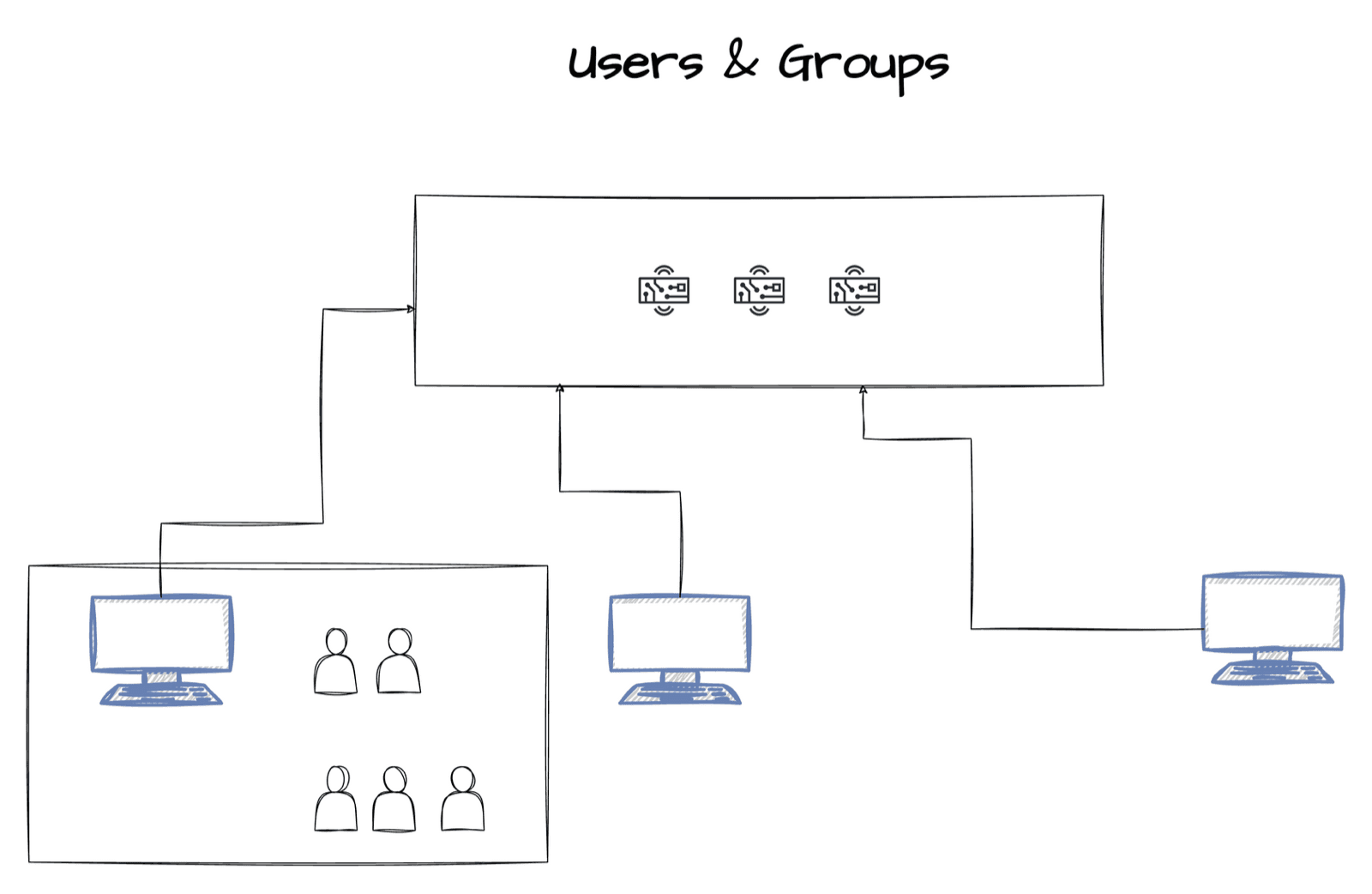
You can see who you are and which groups you belong to:
id -gn prints your primary group. Every user belongs to at least one group, and that primary group matters, as you will see in a second.
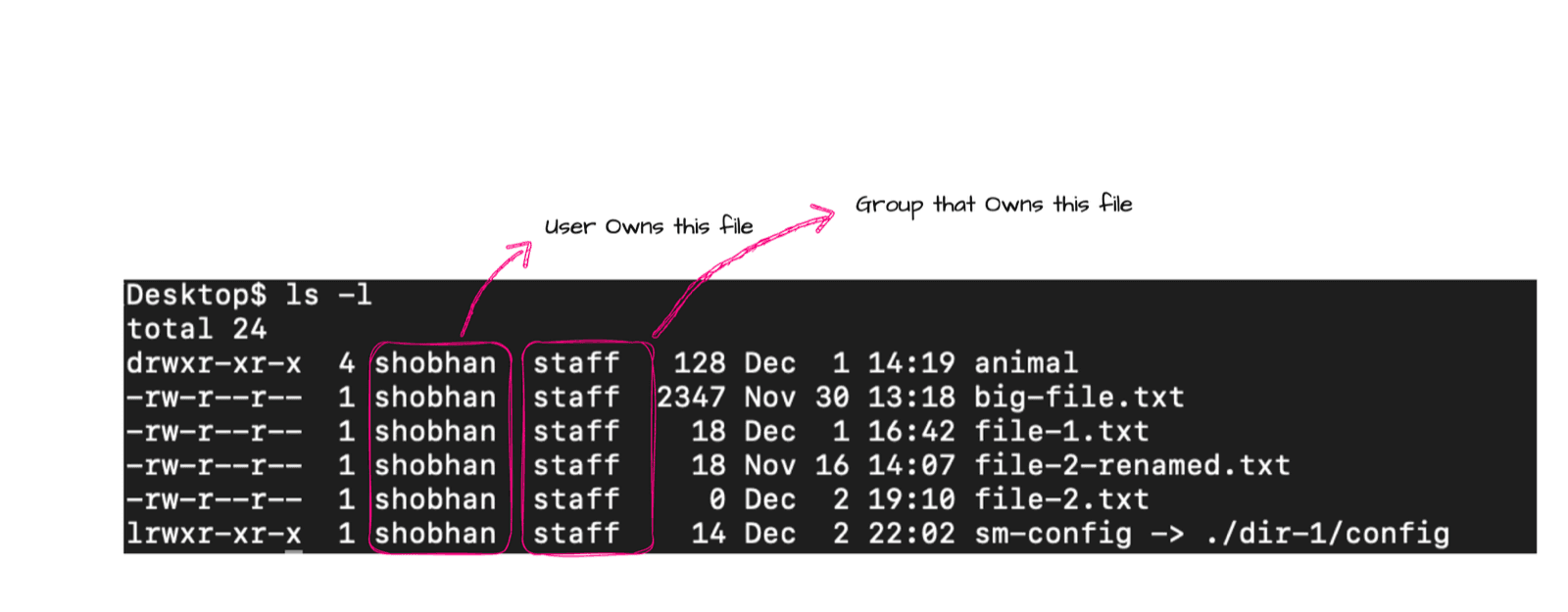
Read the output of ls -l, column by column
| Column | Example | Meaning |
|---|---|---|
| 1st character | d, -, l | File type: d directory, - regular file, l symbolic link (b for block devices like a mounted drive) |
| Next 9 characters | rwxr-xr-x | The permissions (explained below) |
| Number | 4 | Hard link count. Directories usually have several, regular files usually 1 |
| User | shobhan | The user who owns the file |
| Group | staff | The group that owns the file |
| Size | 2347 | Size in bytes. Use ls -lh for human readable sizes like 2.3K |
| Date | Nov 30 13:18 | Last modification time |
| Name | sm-config -> ./dir-1/config | File name. Symbolic links also show where they point |
Ownership: who owns a new file?
When you create a file, you become its owner, and your primary group becomes its group. Everyone else on the system is called others.
So every file has exactly three audiences:
- User (the owner)
- Group (members of the file's group)
- Others (everyone else)
Permissions: read, write, execute
Each audience can have three permissions:
- r (read): see the contents of the file.
- w (write): modify the file. Deleting also needs write permission.
- x (execute): run the file as a program. In Unix everything is a file, including programs like
lsitself, and you needxto run one.
Now the nine characters make sense. They are three blocks of three: user, then group, then others. A letter means the permission is granted, a dash means it is not.
-rw-r--r-- (a normal file)
- ▸User: read + write
- ▸Group: read only
- ▸Others: read only
-rwxr-xr-x (a script or directory)
- ▸User: read + write + execute
- ▸Group: read + execute
- ▸Others: read + execute
Change ownership with chown
The syntax is chown user:group path. Let's try to hand a file to root:
You cannot give your file away as a normal user, so you run it with sudo. After that, ls -l shows root everyone for that file.
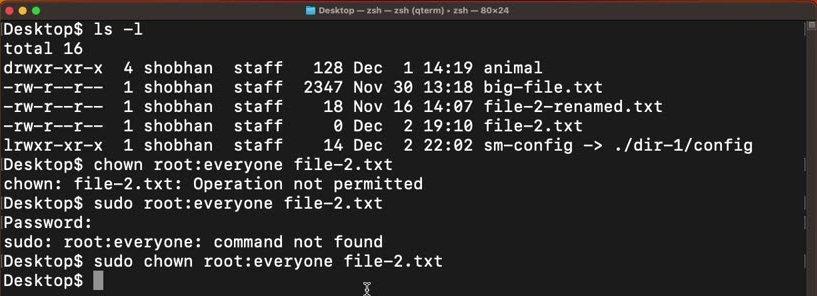
Change only one of the two:
sudo chown bob file.txt          # only the user
sudo chown :developers file.txt  # only the group
sudo chown -R www-data:www-data /var/www/html   # a whole directory, recursively
Change permissions with chmod (symbolic mode)
chmod means "change mode". The symbolic form is: who (u user, g group, o others), then =, + or -, then the permissions.
Here is a real session. Notice how each command changes one part of the string:
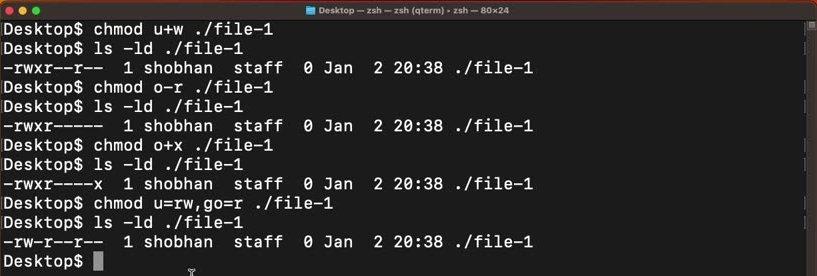
chmod u=rwx file-1      # user gets exactly read, write, execute
chmod u+w file-1        # add write for the user
chmod o-r file-1        # remove read from others
chmod o+x file-1        # add execute for others
chmod u=rw,go=r file-1  # several changes in one go
Why would you add x? Because without it, running a script fails:
The shortcut: octal numbers like 755 and 400
Writing u=rwx,g=rx,o=rx every time gets old. Each block of three permissions is really a 3-bit binary number, and that number fits in a single octal digit:
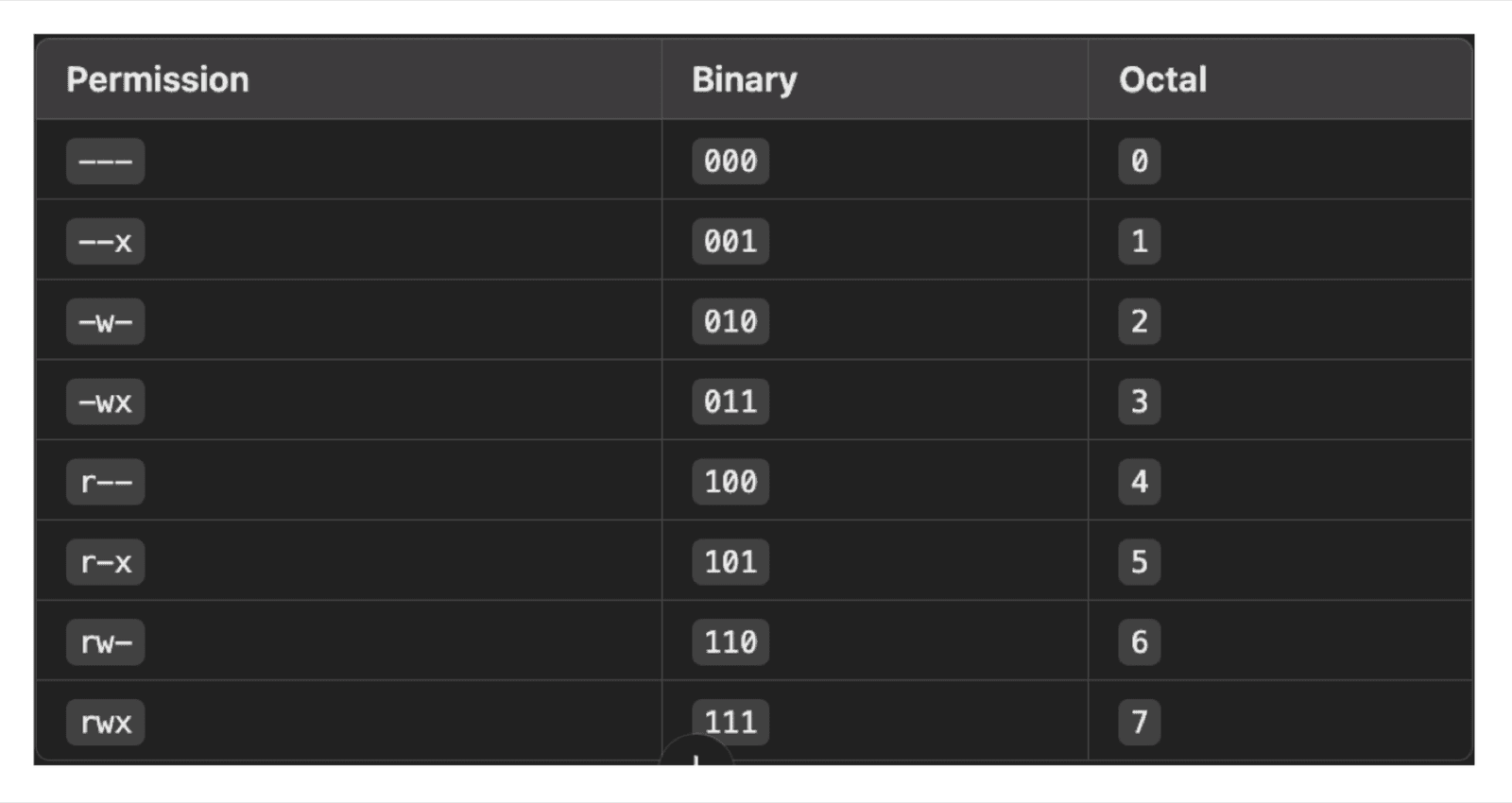
So chmod takes three digits: user, group, others.
| Command | Result | When you use it |
|---|---|---|
chmod 700 file | rwx------ | Private script or directory, only you |
chmod 755 file | rwxr-xr-x | Scripts and directories everyone may use |
chmod 644 file | rw-r--r-- | Normal files |
chmod 600 key.pem | rw------- | SSH private keys (SSH refuses keys others can read) |
chmod 400 file | r-------- | Read-only, even for you |
chmod 777 file | rwxrwxrwx | Everyone can do everything. Almost never what you want |
You don't need to memorise every combination. 755, 644, 600, 700 and 400 cover nearly everything you will meet.
Fixing "Permission denied" in four steps
- Run
ls -l fileand read the three blocks. - Run
idto see your user and groups. Which block applies to you? - Need to run it? You need
x. Need to edit it? You needw. - Fix it with
chmod, orsudo chownif the file belongs to someone else.
Key takeaways
- ✓The 10-character string is: file type, then rwx for user, group and others.
- ✓New files belong to you and your primary group.
- ✓chown changes who owns a file (usually needs sudo); chmod changes what they can do.
- ✓Octal is the shortcut: r=4, w=2, x=1. 755, 644, 600 and 400 cover most real cases.
Learn the command line properly
Permissions are one section of CLI Mastery, a 57-lesson course that takes you from "what is a terminal" to writing shell scripts and configuring a web server over SSH on AWS. Every concept is drawn out first, like the diagrams above, then done live in the terminal.
Not sure yet? Watch a lesson first: Absolute Path vs Relative Path is free, no account needed.