
"Which user am I?" is the first question to ask when a command behaves differently on your laptop and on a server, or when you meet Permission denied. Linux answers it with two tiny commands, whoami and id. This post explains what they print and why users and groups exist in the first place.
Why Unix has users and groups
In the early days, a university had one computer, because computers were expensive. Dozens of terminals were wired to it: one for the physics department, one for maths, one for administration. Inside physics there were teachers and students, each with personal files and some shared ones.
One machine, many people. Unix solved it by separating them logically:
- A user is one account, with its own home directory and its own files.
- A group is a named set of users. You give a permission to the group once, and every member gets it.
That design is still how every Linux server, Mac and cloud VM works. It is also the reason permissions exist: they are rules about which users and groups may read, write or run a file. (The permission rules themselves are in Linux file permissions explained.)
whoami: your user name
That is the user your current terminal session runs as. Every terminal window is logged in as some user, and when you open a new window you land in that user's home directory. On a server over SSH, whoami is a quick way to confirm you logged in as the account you thought.
id: the full picture
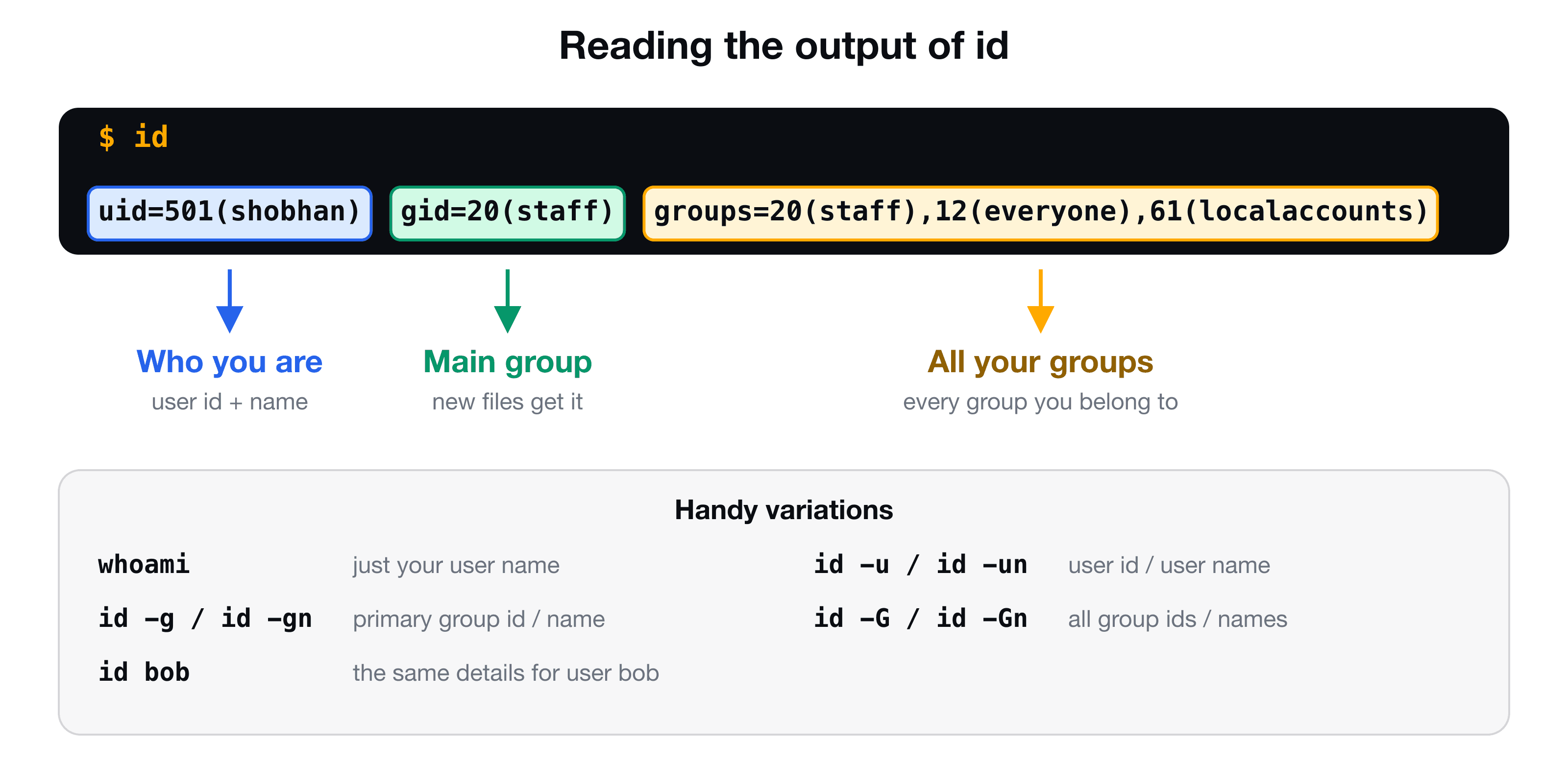
uidis your user id: a unique number, with your name in brackets. The system works with the numbers and shows the names for humans. The special user root has uid0.gidis your primary group: the group that owns the files you create.groupslists every group you belong to. A user can be in many groups, and some of them are created by the operating system.
The group names differ per system. A Mac shows staff and everyone, a typical Ubuntu user shows their own name and groups like sudo.
Asking for just one piece
id takes options when you only need part of the answer, which is handy in scripts:
| Command | Prints |
|---|---|
id -u | Your user id, 501 |
id -un | Your user name, shobhan |
id -g | Your primary group id, 20 |
id -gn | Your primary group name, staff |
id -G | The ids of all your groups |
id -Gn | The names of all your groups |
groups | The names of all your groups (shorter) |
Pass a user name to see someone else: id bob shows bob's uid, primary group and groups. Without an argument you always get the current user.
Where users and groups live
On Linux, accounts are stored in plain text files:
cat /etc/passwd    # one line per user: name, uid, gid, home directory, shell
cat /etc/group     # one line per group: name, gid, members
You will see many accounts you never created. Most are system users that run services (a web server, a database) so that those programs have only the access they need, and not yours. (macOS keeps its accounts in a different directory service, so these files are mostly empty of real users there.)
Creating users and groups
Most developers rarely need to, because on your own machine you are one user, and on a cloud server the image already comes with one. If you do administer a server, the commands exist. They change the system, so they need sudo:
sudo adduser alice            # create a user (Debian, Ubuntu)
sudo groupadd developers      # create a group
sudo usermod -aG developers alice   # add alice to the group (-a: append, do not replace)
sudo deluser alice            # remove a user
The -a in usermod -aG matters. Without it, the user is removed from all other groups and put only in the one you named. After you add yourself to a group, log out and back in for it to take effect. (The names of these commands differ a little between distributions, so check man usermod on yours, and read what sudo does before you run any of them.)
When you need this
- "Permission denied":
idtells you which user and groups apply to you. Compare them with the owner and group onls -l(see ls -l explained). - Files owned by root after you ran a command with
sudo. - Docker, shared folders, deployment users: access is usually given by adding a user to a group.
- A server with several people: one account each, with group-based access to shared folders.
Key takeaways
- ✓Unix was built for many people sharing one machine. Users own files, groups share access.
- ✓whoami prints your user name. id prints uid, primary group and all groups.
- ✓id -u, id -g and id -G give single values for scripts. id bob inspects another user.
- ✓Accounts are stored in /etc/passwd and /etc/group on Linux.
- ✓Adding a user to a group uses usermod -aG. Forget the -a and you lose the other groups.
Go from "who am I" to fixing real permission errors
Users and groups are the first half of the permissions story. CLI Mastery teaches the second half right after: the permission string, ownership, chown, chmod and sudo, then processes, pipes, scripts and a real AWS server. 57 lessons, lifetime access. You can start with the free lesson on absolute and relative paths.