
The Linux command line looks like a wall of cryptic text until you notice that almost every command is built the same way. Learn that one pattern, and ls -lh, head -n 3 notes.txt and git commit --amend all become readable.
This post is the decoder.
The pattern: command, options, arguments
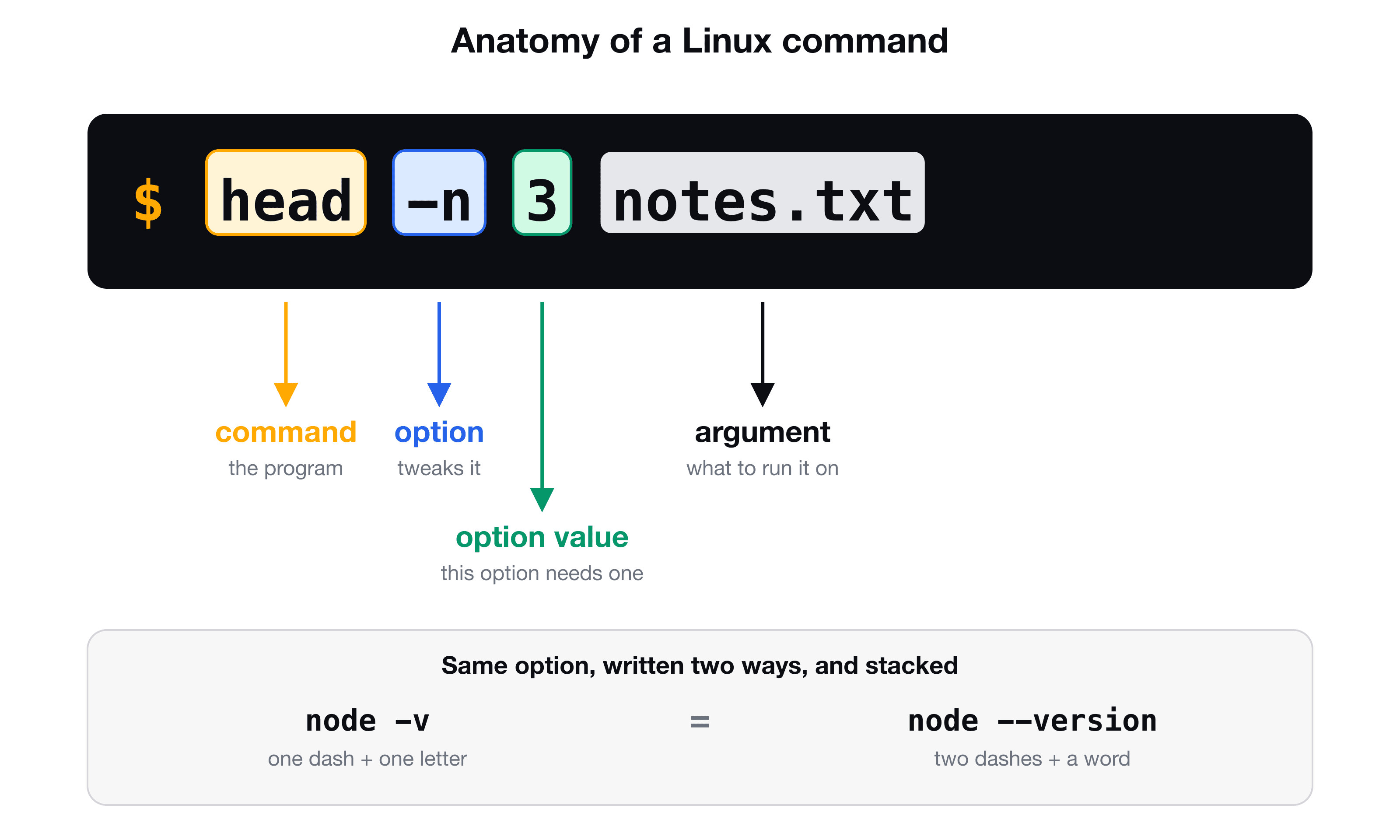
| Part | What it is | Example |
|---|---|---|
| Command | The program you run. Always first | head |
| Options (also called flags or switches) | Change how the command behaves | -n |
| Arguments | What the command works on: files, text, a path | notes.txt |
The order is always: command, then options, then arguments. Let's build it up from the simplest case.
Start with just a command and an argument
echo prints whatever you give it:
echo is the command and hello is the argument. When an argument contains spaces, wrap it in quotes, so the shell treats it as one argument instead of two:
Add an option
An option modifies the behavior. echo normally ends with a new line. The -n option removes it:
The prompt ($) now appears right after hello, because no new line was printed.
Short options and long options
Most options come in two spellings:
| Style | Looks like | Use when |
|---|---|---|
| Short | One dash, one letter: -v | Typing quickly in your terminal |
| Long | Two dashes, a word: --version | Writing scripts that others must read |
Same result, two spellings. (The exact version number will differ on your machine.)
Stack several options together
You can pass options one after another, and the order does not matter:
All three do the same thing. -l gives the long listing with details, and -h prints sizes in a human-readable form such as 4.0K or 2.3M instead of raw bytes. Single-letter options can be stacked behind one dash, which is why you will mostly see ls -lh.
Options that take a value
Some options need a value of their own. head prints the first lines of a file, and -n tells it how many:
Here 2 is not an argument for head. It belongs to -n. Most programs let you write the value with or without a space after a short option, so -n 2 and -n2 are the same. For long options you usually write --lines=2 or --lines 2.
Commands that accept many arguments
If a command can work on several things, list them all with spaces:
Options first, then every argument. The -n here (for cat) adds line numbers. It is the same letter as in head -n, with a completely different meaning, which is the reason to read the manual instead of guessing.
How to find out what a command accepts
You do not have to memorise options. Look them up:
man ls          # the full manual page (press q to quit, / to search)
ls --help       # a short summary (Linux; many macOS commands do not have it)
man works everywhere. Inside the page, press / and type a word (for example /human) to jump to the option you want, and q to leave.
Typing faster while you are at it
A few keys make every command easier to type and fix:
| Key | What it does |
|---|---|
| Tab | Auto-completes a command or file name. Press twice to list the choices |
| Up arrow | Brings back the previous command |
| Ctrl + A / Ctrl + E | Jump to the start / end of the line |
| Ctrl + C | Stop the running command |
clear | Clear the screen |
exit | Close the session |
Key takeaways
- ✓Every command reads as: command, then options, then arguments.
- ✓Short options use one dash and a letter, long options use two dashes and a word.
- ✓Single-letter options can be stacked in any order: ls -lh.
- ✓Some options take a value of their own, as in head -n 2 notes.txt.
- ✓Use quotes around an argument that contains spaces. Use man to look up any option.
Learn the terminal in the order it makes sense
Once you can read a command, everything else in the terminal gets easier. CLI Mastery starts exactly here: how a command runs, then the file system, files, users and permissions, pipes, scripts and a real server on AWS. 57 lessons, lifetime access. You can start with the free lesson on how the terminal talks to the shell.