
You type a command, and the terminal answers "Permission denied". Someone on a forum says "just add sudo". It works, and you move on without knowing what you just did.
Let's fix that. By the end you will know who you are on the system, what the root user is, why sudo exists, and when to leave it alone.
First, who are you?
Every terminal session runs as a user, and every user belongs to one or more groups. whoami prints your user name, and id prints your numeric user id, your primary group and every group you are in:
How users and groups decide who can read, write and run a file is covered in Linux file permissions explained. Here we need only one fact: you are not the owner of the files that run the system.
The problem: normal users cannot change the system
As a normal user you can work freely inside your home directory, and in other places you can only do what the permissions allow. The folders that make the system run (/etc for configuration, /bin and /usr/bin for programs) are owned by someone else. Installing a program for everyone means adding a file to one of those folders, and you do not have permission to.
Try it:
Read the ls -ld . line: the owner is root, and your user is neither the owner nor (usually) in the group. So as "others" you get r-x: you can look and enter, but you cannot create or delete anything. That is exactly what should happen. The system is protecting itself from you.
The root user, and the problem with sharing it
Unix has one special user called root (user id 0). Root ignores the permission rules: it can read, change or delete any file on the system. That power is needed for administration: installing software, editing system settings, managing users.
In the early days an administrator simply logged in as root with the root password. It worked for one person, but when you have many administrators it falls apart:
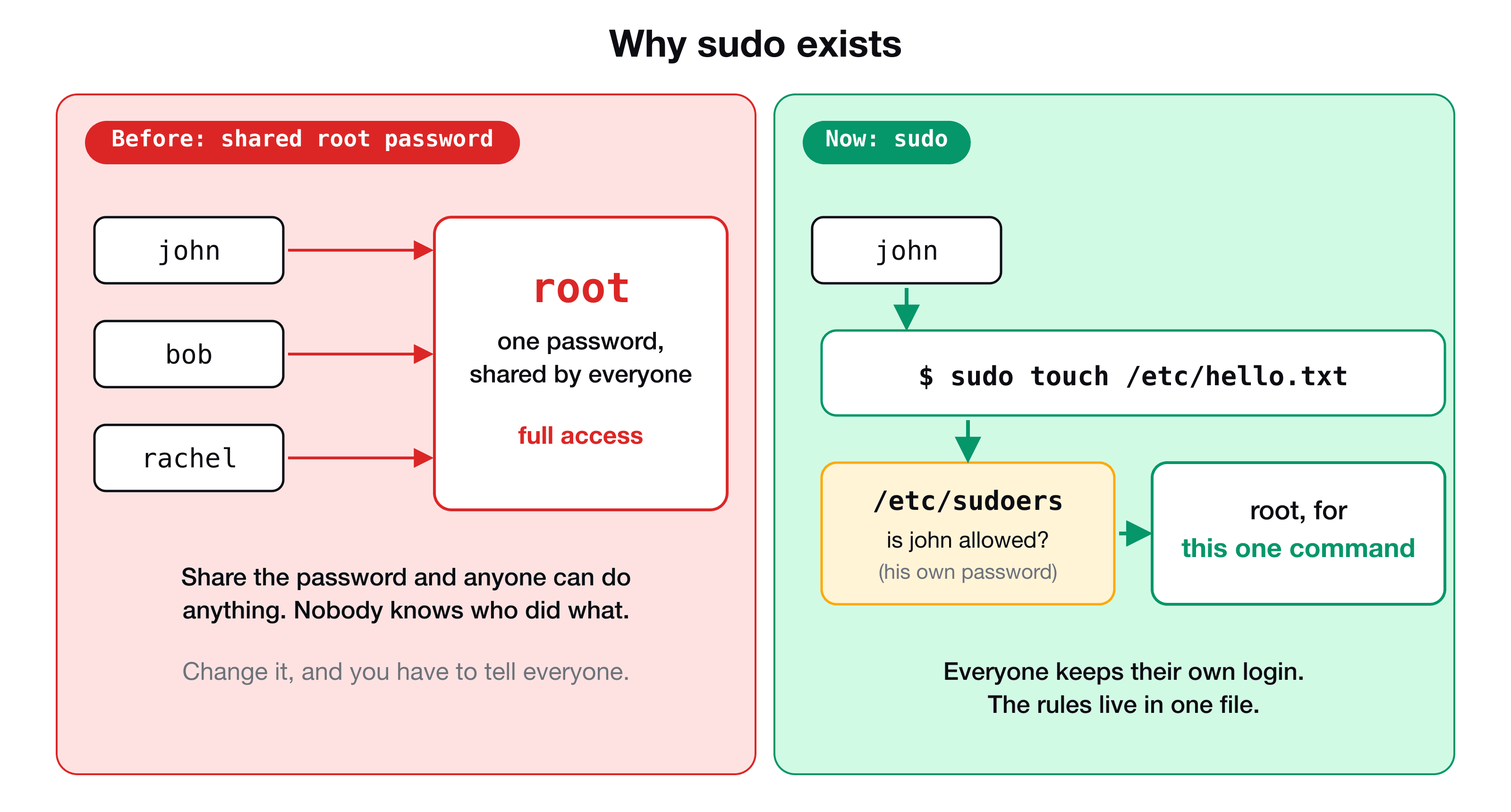
- Everyone knows the same all-powerful password.
- Nobody can tell who did what.
- If one person leaves, you have to change the password and tell everyone.
The fix: sudo
sudo stands for superuser do. You stay logged in as yourself, with your own password, and put sudo in front of one command to run it as root.
Two details worth noticing:
- The password prompt asks for your own password, not the root password. (
sudoremembers it for a few minutes, so you will not be asked for every command.) - The new file is owned by root, because root created it. You can see that in the
ls -loutput.
You can even watch the identity change:
Who is allowed to use sudo? The sudoers file
Before running your command, sudo checks a configuration file, /etc/sudoers. It decides who may use sudo, and what they may run. With 100 users, you could create an admin group and write one rule: only members of that group can gain root.
On most systems the default is already in place. On Ubuntu and Debian the group is sudo; on macOS it is admin. Edit the file only with the tool made for it:
sudo visudovisudo checks the syntax before saving. A typo in /etc/sudoers can lock every user out of sudo, and visudo stops you from saving that mistake. To see what your user is allowed to do, run sudo -l.
When not to use sudo
sudo removes the safety net, so treat it as a deliberate step, not a magic word.
- Do not run everyday tools such as editors or
gitwithsudo. Files they create become owned by root and then you cannot edit them. - Prefer a narrow fix: change the permissions of one file instead of running everything as root.
- On a real server, give each person their own account and let
sudolog who did what. Never share the root password.
Key takeaways
- ✓whoami shows your user. id shows your user id and all your groups.
- ✓root can do anything. Normal users cannot change system folders such as /etc.
- ✓sudo runs one command as root, using your own password, so nobody shares the root password.
- ✓/etc/sudoers decides who may use sudo. Edit it only with visudo.
- ✓Do not add sudo just to silence an error. First find out why the permission is missing.
Go from copy-and-paste to understanding
Knowing why a command needs sudo is the difference between fixing a server and guessing on one. CLI Mastery builds this up with users, permissions, ownership and processes, then has you configure a real EC2 server over SSH. 57 lessons, lifetime access. You can start with the free lesson on absolute and relative paths.