
Sooner or later you will have to change a file on a server, and there will be no mouse and no VS Code. You need an editor that lives inside the terminal. The friendliest one is nano: it prints its own cheat sheet on the screen, so you can use it on day one.
This post covers nano from the first keystroke, why there are several terminal editors in the first place, and the one vim trick everybody needs.
Text editor vs word processor
A word processor (Word, Google Docs, Pages) stores formatting: bold, fonts, headings. A text editor stores only characters. No styling, nothing hidden.
Code, configuration files, scripts and plain notes are all plain text, so you use a text editor. VS Code and Sublime Text are text editors too. On a server you will use one that runs in the terminal.
Open a file in nano
nano notes.txtIf notes.txt does not exist, nano opens an empty buffer, and creates the file when you save. Run just nano to start with no file name.
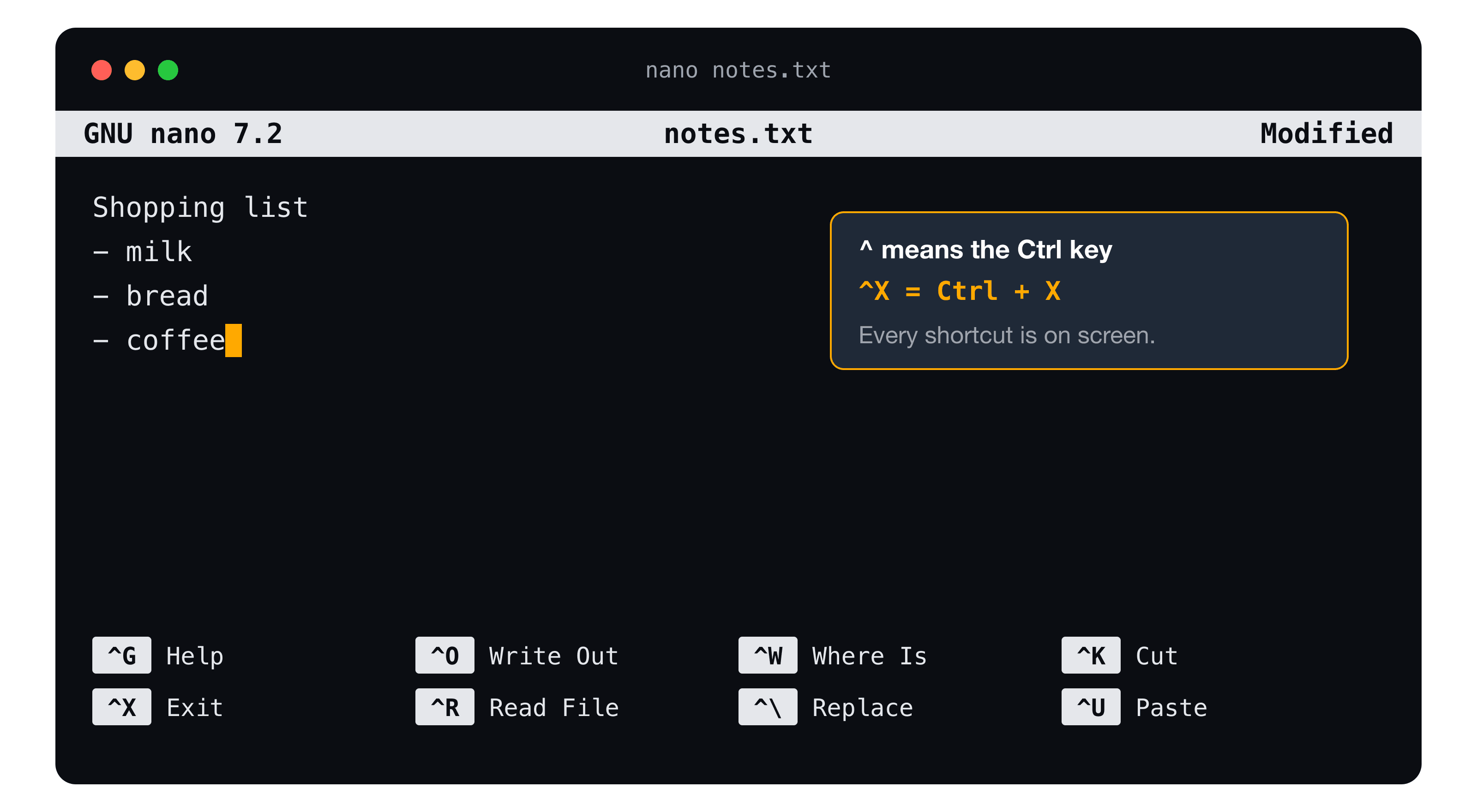
Type normally. The arrow keys move the cursor, Backspace deletes, Enter starts a new line. You can also click with the mouse in many terminals, but the keyboard always works.
The shortcuts you need
| Shortcut | What it does |
|---|---|
Ctrl + O | Write Out: save the file |
Ctrl + X | Exit nano |
Ctrl + G | Open the help screen |
Ctrl + K | Cut the current line |
Ctrl + U | Paste what you cut |
Ctrl + W | Search for text |
Ctrl + A / Ctrl + E | Jump to the start / end of the line |
You do not have to memorise them. The two rows at the bottom of the screen show what is available. If you are ever lost, press Ctrl + G.
Save and quit
This is the part that surprises beginners. Press Ctrl + X after you changed something and nano asks:
Save modified buffer?
 Y Yes   N No   ^C Cancel
A buffer is the temporary copy of your text held in memory. Your edits are only in that buffer until you save them.
| You press | Result |
|---|---|
Y | Save. nano then asks for the file name, press Enter to keep it |
N | Quit without saving, your changes are gone |
Ctrl + C | Cancel, go back to editing |
If you opened a file by name, the name is already filled in. Type a different name at that prompt and nano saves a new file with your text, a quick way to duplicate a file. If you try to save over an existing name, it asks before overwriting.
You can also save without leaving: Ctrl + O, press Enter, and keep typing.
Why more than one terminal editor exists
When you read tutorials you will meet other names. Here is where they came from.
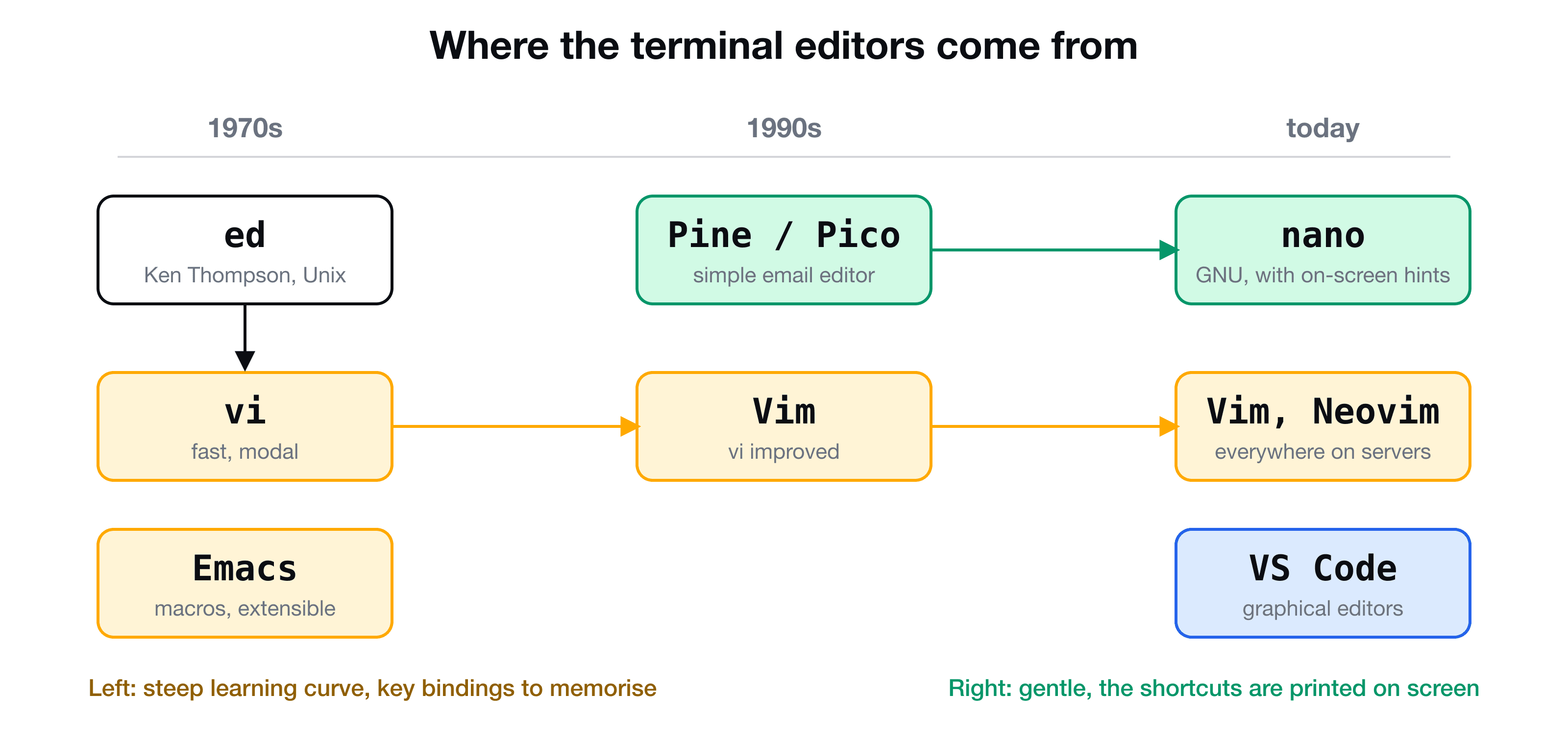
- ed is the oldest, written for early Unix when output went to a printer, not a screen.
- vi and Emacs came with video terminals. Both are very powerful, and both have a steep learning curve. Emacs needs many key combinations, and vi works in modes.
- Vim means "vi improved" and is installed on nearly every server.
- nano descends from Pico, the simple editor in the Pine email program. It is made for people who do not want to memorise anything, which is why it prints the shortcuts for you.
The vim escape: how to quit when you did not choose it
Some commands (such as git commit without a message, or crontab -e on some systems) drop you into vim without asking. It looks like a normal terminal that does not respond to typing. Here is the survival kit:
| Step | Keys |
|---|---|
| You are stuck | Press Esc first, to be sure you are not in insert mode |
| Quit, nothing changed | Type :q and Enter |
| Quit and throw away changes | Type :q! and Enter |
| Save and quit | Type :wq and Enter |
| Start typing text | Press i, then type. Press Esc when done |
Vim is worth learning later. For now this is enough to get out safely.
Set your default editor
Many tools open "your default editor". Tell them to use nano by adding this line to your shell config:
export EDITOR=nanoThe config files (.bashrc, .zshrc) are explained in Customize your shell.
Key takeaways
- ✓A text editor stores characters only. nano is a terminal text editor made for beginners.
- ✓nano file opens or creates a file. The shortcuts are printed at the bottom, ^ means Ctrl.
- ✓Ctrl + O saves, Ctrl + X exits. On exit, Y saves, N discards, Ctrl + C cancels.
- ✓Edits live in a buffer until you save them.
- ✓Stuck in vim? Press Esc, then :q! to quit or :wq to save and quit.
From editing one file to running a server
Editing files in the terminal is the first step toward managing real servers. CLI Mastery takes you from here to files, permissions, shell scripts, and finally an AWS server you connect to with SSH and configure yourself. 57 lessons, lifetime access. Try the free lesson on absolute and relative paths.