
A shell script sounds advanced. It isn't. A shell script is just a file full of commands you would otherwise type one by one. If you can type echo hello in a terminal, you can write a script.
Let's build one from nothing, and fix every error you will hit on the way.
1. Create the script
Open a new file with nano:
nano my-scriptType one command and save (Ctrl + O, Enter, then Ctrl + X to exit):
echo helloNo .sh extension needed. Unix doesn't care about extensions, though .sh is a nice hint for humans.
2. Run it, and fix "permission denied"
There's no x anywhere in the permissions, so nobody is allowed to execute it. Add execute permission for your user:
Add more lines and they run top to bottom:
echo hello
echo hello 2
ls
That's genuinely all a script is. Everything below is just making it smarter.
3. The shebang: say which shell runs it
The very first line of a script should be a shebang: #! (hash + bang) followed by the path of the interpreter that should run the file.
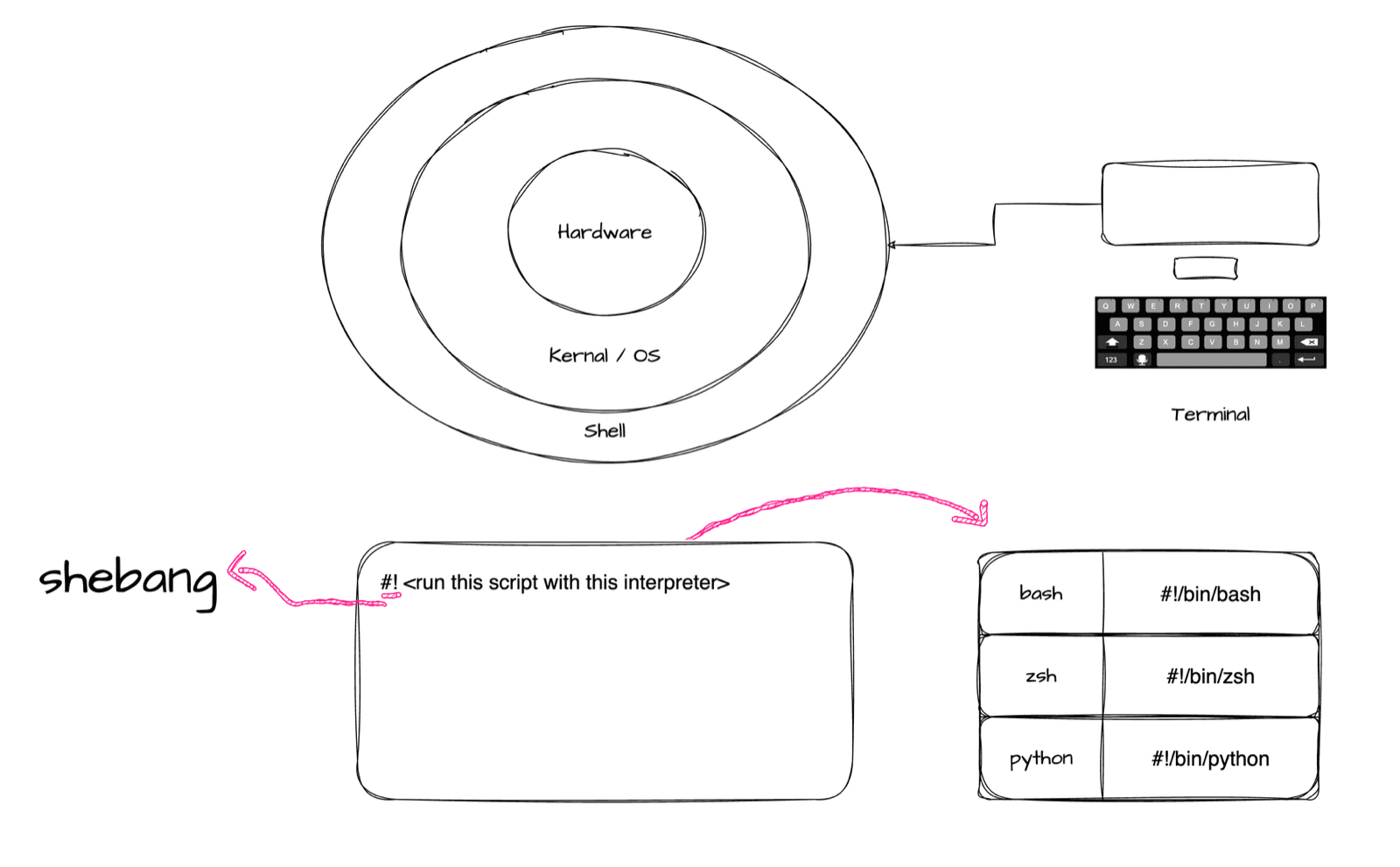
#!/bin/bash
echo hello
Find the path of any shell or interpreter with which:
Without a shebang, the script runs with whatever shell you happen to be in. That's fine until a teammate runs it from a different shell. The same trick works for other languages: #!/usr/bin/env python3 or #!/usr/bin/env node.
Curious which shell is active right now? echo $0 tells you. Type bash to start Bash inside Zsh, and exit to come back.
4. Variables
Declare with name=value (no spaces around =), read with $name:
#!/bin/bash
greet="hello"
echo "The greeting is $greet"
echo $greet
Without the $, echo greet just prints the word "greet". You already use variables like this every day: $USER, $HOME and $PATH are environment variables.
5. Command substitution: store a command's output
Wrap a command in $(...) and its output gets substituted in place:
#!/bin/bash
ls_output=$(ls)
echo "The command output is:"
echo "$ls_output"

echo "Today's date is $(date)"
date is a command, not a variable, so echo $date prints nothing. $(date) runs it.
6. User input: read and arguments
Ask while the script runs with read:
#!/bin/bash
echo "What is your name?"
read username
echo "Welcome $username"
Or pass arguments when you start it. They arrive as $1, $2 and so on:
#!/bin/bash
echo "Argument 1 is $1"
echo "Argument 2 is $2"7. export and alias
export makes a variable available to every program and script you start from this session:
Without export, child processes like your script can't see it.
alias creates your own shortcut command:
alias ld='ls -ld'
ld my-scriptWhat about if statements and loops?
Honest advice: almost nobody memorises Bash syntax for if, loops and string tricks. Keep a cheat sheet open. devhints.io/bash is excellent, and so is our free Linux command line cheat sheet.
Key takeaways
- ✓A shell script is a file of commands. chmod u+x it, then run it with ./name.
- ✓Start every script with a shebang like #!/bin/bash.
- ✓name=value to set (no spaces), $name to read, $(command) to capture output.
- ✓read asks the user; $1, $2 read arguments; export and alias last for the session.
Write scripts that actually save you time
CLI Mastery gets you from your first command to writing scripts and running them on a real AWS server over SSH. 57 short lessons, lifetime access. Try the free lesson first.