
Your laptop feels slow. A dev server won't stop. A port is "already in use". All three problems have the same root: a process you can't see. Here's how to see them and stop them, properly.
What is a process?
When you run any program, the operating system starts a process: the running program plus the CPU time and memory it uses.
Typing ls is a good example. You hit Enter, the shell finds the ls binary on the file system, and starts executing it. That execution is a process. For ls it lives for a few milliseconds, prints the result and ends.
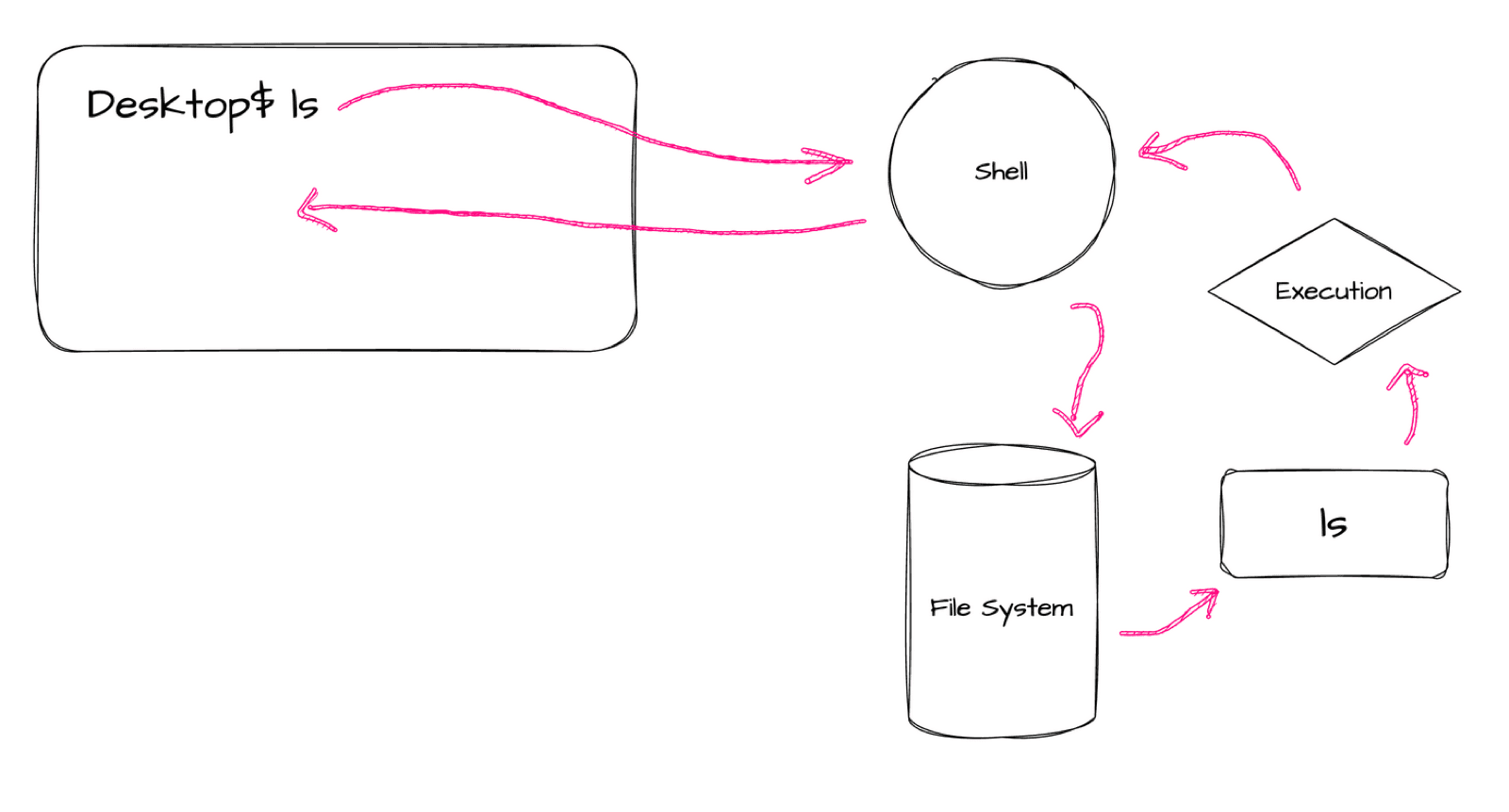
Other processes run for a long time: a text editor like nano, a database, the draw.io app I use to make these diagrams, your web server. Some are interactive, some quietly run in the background.
List processes with ps
ps (process status) on its own only shows processes from your current terminal session. Usually just the shell and its login:
The flags you will actually use:
| Flag | Shows |
|---|---|
a | Processes from all users (with a terminal) |
u | The user that owns each process, plus CPU and memory use |
x | Processes without a terminal too: background apps, servers, daemons |
Combine them and you get the command worth memorising:
ps aux                 # every process on the system
ps aux | grep node # just the ones mentioning "node"The most important column is PID, the process ID. Every process gets a unique number, and that number is how you control it.
Watch processes live with top
top is a live dashboard. It refreshes on its own and sorts processes by CPU use, so the one slowing your machine down is right at the top. It also shows each process's state (running or sleeping) and total CPU and memory. Press q to quit.
Process states
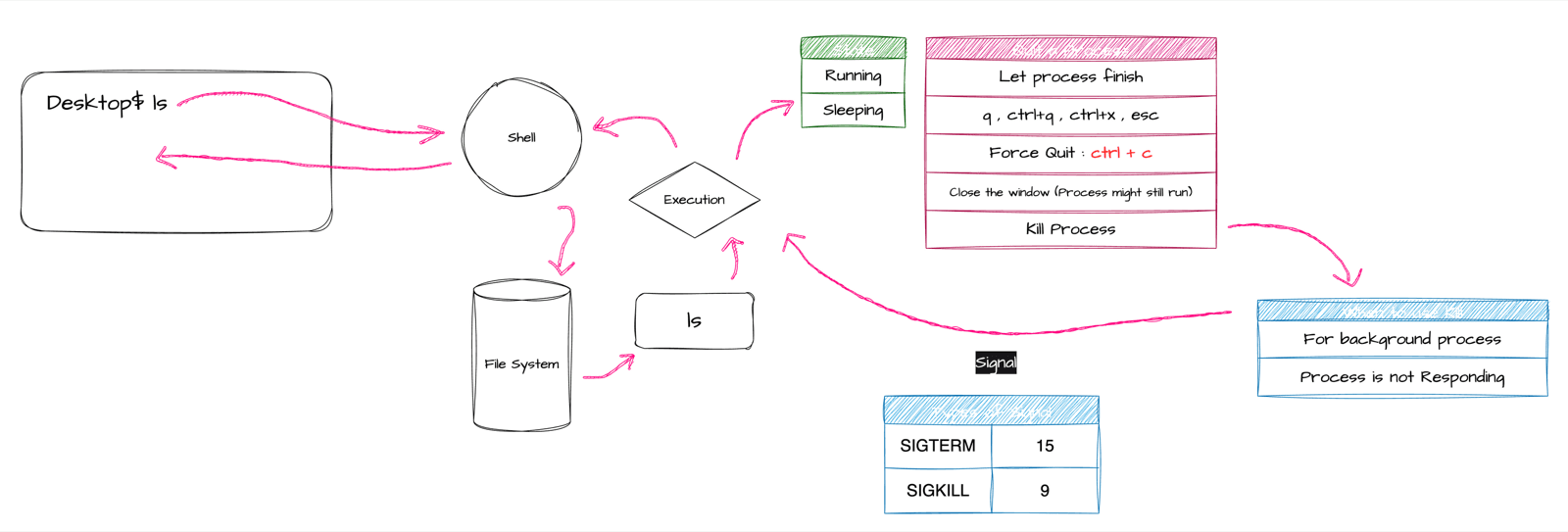
- Running: actively using the CPU.
- Sleeping: alive but idle, waiting for something. An open
nanoyou are not typing in is sleeping. Trysleep 5: the terminal is blocked for five seconds, then free again. - Hanging: stuck, usually because of a bug. This is when you need to stop it yourself.
Five ways to stop a process
- Let it finish.
sleep 2ends by itself after two seconds. - Quit politely from inside the program:
qinlessandtop,Ctrl + Xinnano. - Force quit with
Ctrl + C. This works for almost anything running in the foreground of your terminal. If it doesn't, tryCtrl + D. - Close the window. Not reliable: some processes keep running in the background after the window is gone.
killit by PID. The right tool for background processes and anything not responding.
kill: it sends a signal
Despite the name, kill doesn't always kill. It sends a signal to a process. Two signals cover nearly every case:
kill PID = kill -15 (SIGTERM)
- ▸The default
- ▸Asks the process to shut down gracefully
- ▸It can save work, free memory and clean up first
- ▸Use this first, always
kill -9 PID (SIGKILL)
- ▸Stops the process immediately
- ▸No cleanup, no saving
- ▸Use only when -15 is ignored
- ▸Unsaved data is lost
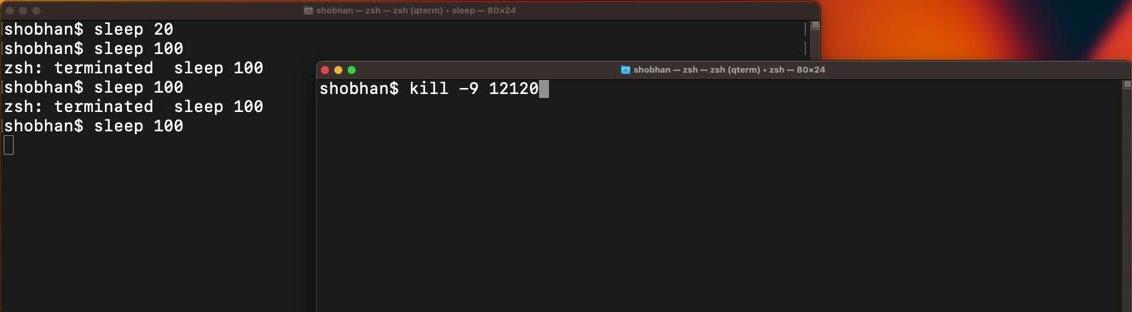
Try it safely with sleep. Start sleep 100 in one terminal, then from another:
The first window shows terminated for kill (SIGTERM) and killed for kill -9 (SIGKILL). With sleep you can't see a difference in behaviour, because it has nothing to clean up. A database or an editor with unsaved changes behaves very differently.
Real world: free a stuck port
The classic: you closed the terminal but your dev server is still holding port 3000.
ps aux | grep node      # find the PID in the second column
kill 48213              # ask nicely
kill -9 48213 # only if it is still thereKey takeaways
- ✓A process is a running program. Every process has a PID.
- ✓ps aux lists every process; pipe it into grep to find one.
- ✓top is a live view sorted by CPU usage.
- ✓kill PID sends SIGTERM (15) for a graceful stop; kill -9 PID sends SIGKILL for an immediate one.
Stop guessing in the terminal
CLI Mastery takes you through the terminal the way it actually works underneath: the shell, the filesystem, users, permissions, processes, pipes and scripts, then a real server on AWS. 57 lessons, lifetime access. Start with the free lesson on how the terminal talks to the shell.