
Pipes are the reason experienced developers love the terminal. One line like ps aux | grep node does what would take minutes of clicking. Once you understand where a command's input comes from and where its output goes, you can glue small commands into surprisingly powerful tools.
Every command has an input and an output
Most commands take some input, process it, and produce output:
- Standard input (stdin) is, by default, your keyboard.
- Standard output (stdout) is, by default, your terminal window.
This idea comes from the days before monitors, when the input device was literally a typewriter and the output device was a printer.
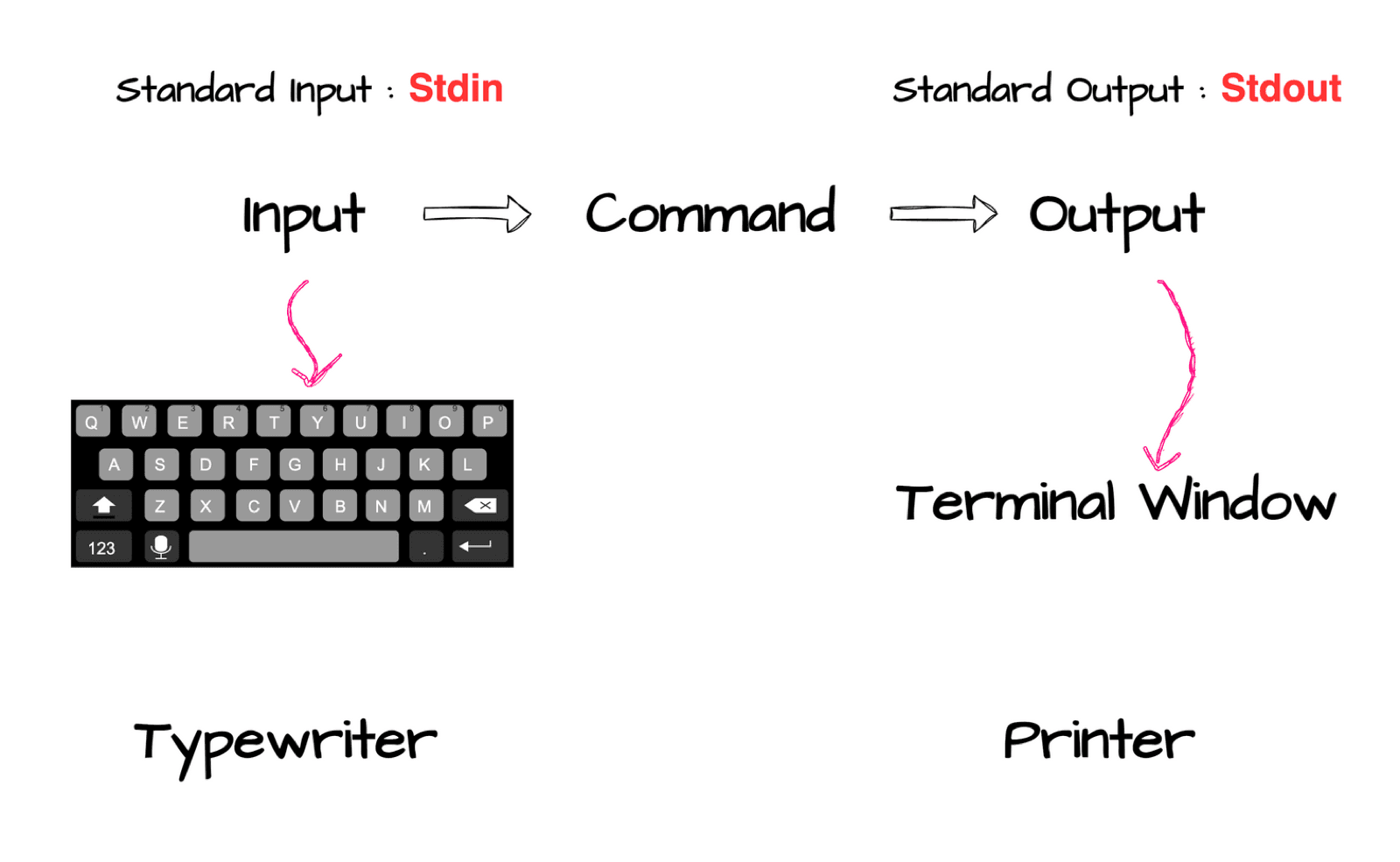
You can see stdin in action by running cat with nothing after it. It waits for you to type, and echoes each line back. Press Ctrl + C to stop it.
Redirect output to a file: > and >>
The right angle bracket sends a command's output into a file instead of the screen:
| Operator | What it does |
|---|---|
> | Write output to a file. Creates the file, or overwrites it if it exists |
>> | Append output to the end of a file |
It works with any command. ls -la > ls-output prints nothing on screen, because the whole listing went into the file.
Feed input from a file: <
The left angle bracket does the opposite: it feeds a file as the input of a command.
cat file-1.txt     # the file path is an argument
cat < file-1.txt   # the file content is the input (stdin)
Same result for cat, but a different mechanism. That difference matters: some commands read stdin and some don't. echo only uses arguments, so echo < file-1.txt prints an empty line.
Pipes: connect one command's output to the next one's input
The pipe | (Shift + backslash on most keyboards) takes the output of the command on the left and makes it the input of the command on the right.
command 1
cat people.txt
prints the names
command 2
sort
sorts them
command 3
uniq
removes duplicates
stdout
Terminal
sorted, unique list
This is the core idea of Unix. Instead of one giant program for every task, Unix ships many small programs that each do one thing well, and the pipe lets you combine them to solve bigger problems.
Watch pipes explained in the free lesson:
grep: the pipe's best friend
grep searches text for a pattern and prints only the matching lines. Combined with a pipe, it filters the output of any command.
Find a running process without scrolling through hundreds of lines:
(The last line is the grep process itself, which also contains the word "login".)
A few flags you will use constantly:
cat people.txt | grep -i bob     # -i: ignore case (grep is case sensitive by default)
grep -n "error" app.log          # -n: show line numbers
grep -r "TODO" src/              # -r: search every file in a directory
tail -f app.log | grep ERROR # watch a live log for errors only/dev/null: the black hole
Sometimes you want a command to run but don't want its output at all, not on screen and not in a file. Redirect it to /dev/null, a special file that discards everything written to it:
cat people.txt > /dev/null           # output disappears
./backup.sh > /dev/null 2>&1         # discard output AND errors (common in cron jobs)
2>&1 means "send errors (stream 2) wherever normal output (stream 1) is going", so both vanish.
Cheat sheet
| Syntax | Meaning |
|---|---|
cmd > file | Output to file (overwrite) |
cmd >> file | Output to file (append) |
cmd < file | File as input |
cmd1 | cmd2 | Output of cmd1 becomes input of cmd2 |
cmd | grep word | Keep only lines containing "word" |
cmd > /dev/null 2>&1 | Throw away all output |
Key takeaways
- ✓stdin defaults to the keyboard, stdout to the terminal.
- ✓> overwrites a file, >> appends to it, < feeds a file as input.
- ✓A pipe | turns one command's output into the next command's input.
- ✓grep filters lines; -i ignores case, -r searches folders, -n shows line numbers.
Get fluent, not just familiar
Pipes are where the terminal starts paying off. CLI Mastery builds up to this step by step, then uses it in shell scripts and on a real AWS server. 57 lessons, lifetime access. Start with the free pipes lesson.